Before you begin
Who: any tester with a wallet. Network: Kaspa Testnet-10. Tests: TR-01, TR-02, TR-03, TR-06, TR-10, TR-12, TR-15, TR-21.
You need: Chrome with Kastle on Testnet-10, connected to https://lightsea.io, and some test KAS. Buying 1 tonne at about 2 KAS needs a little over 4 KAS in the wallet: the price, the 0.2% fee, and 2 KAS that is set aside with your tokens and stays yours.
1. Find the credit you want
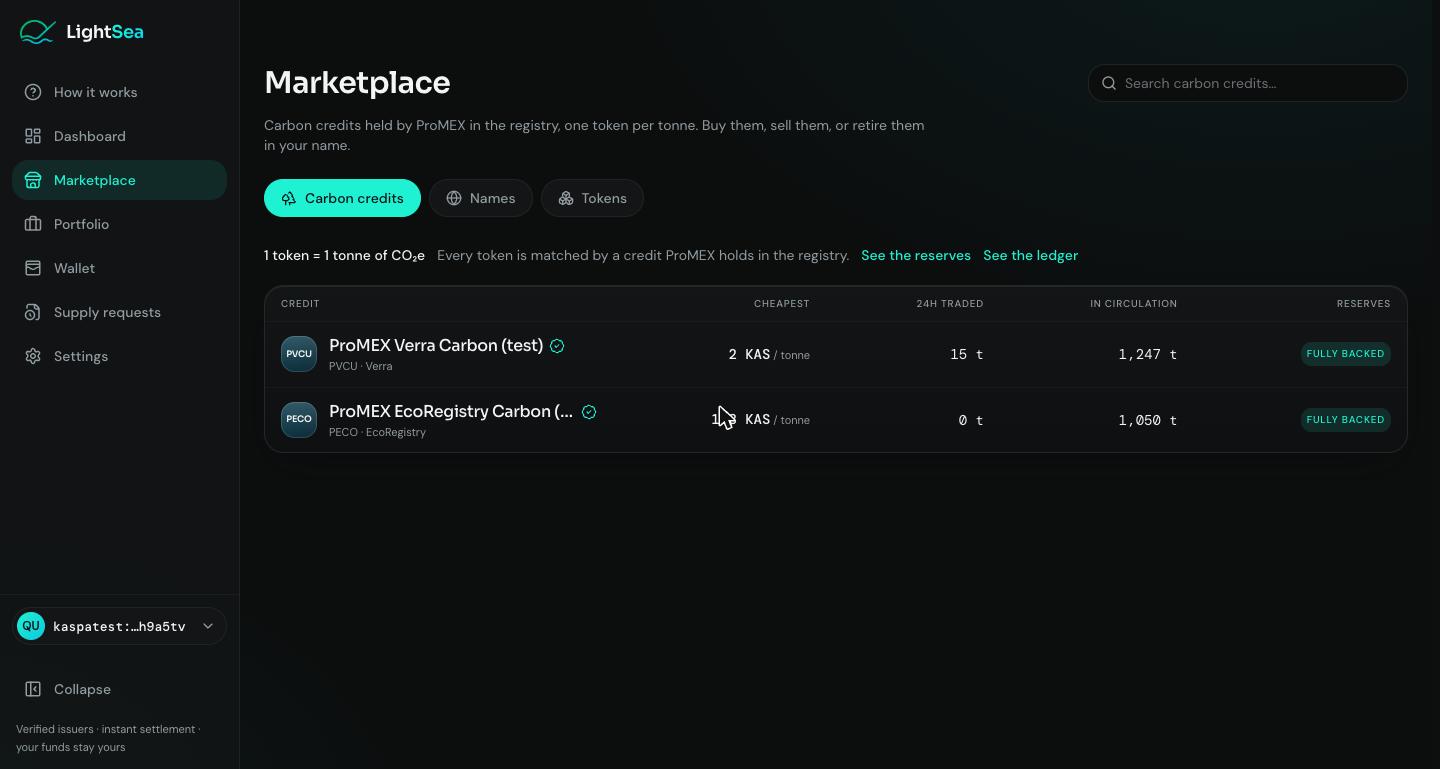
- Open Marketplace.
- Choose the Carbon credits tab.
- Click a row to open that token.
Each row is one kind of token. One token is one tonne of CO₂e that ProMEX holds in the registry. The columns show the cheapest price on offer, how much traded in the last 24 hours, how many tonnes are in circulation, and whether the reserves are fully backed.
2. Check the token, then press Trade
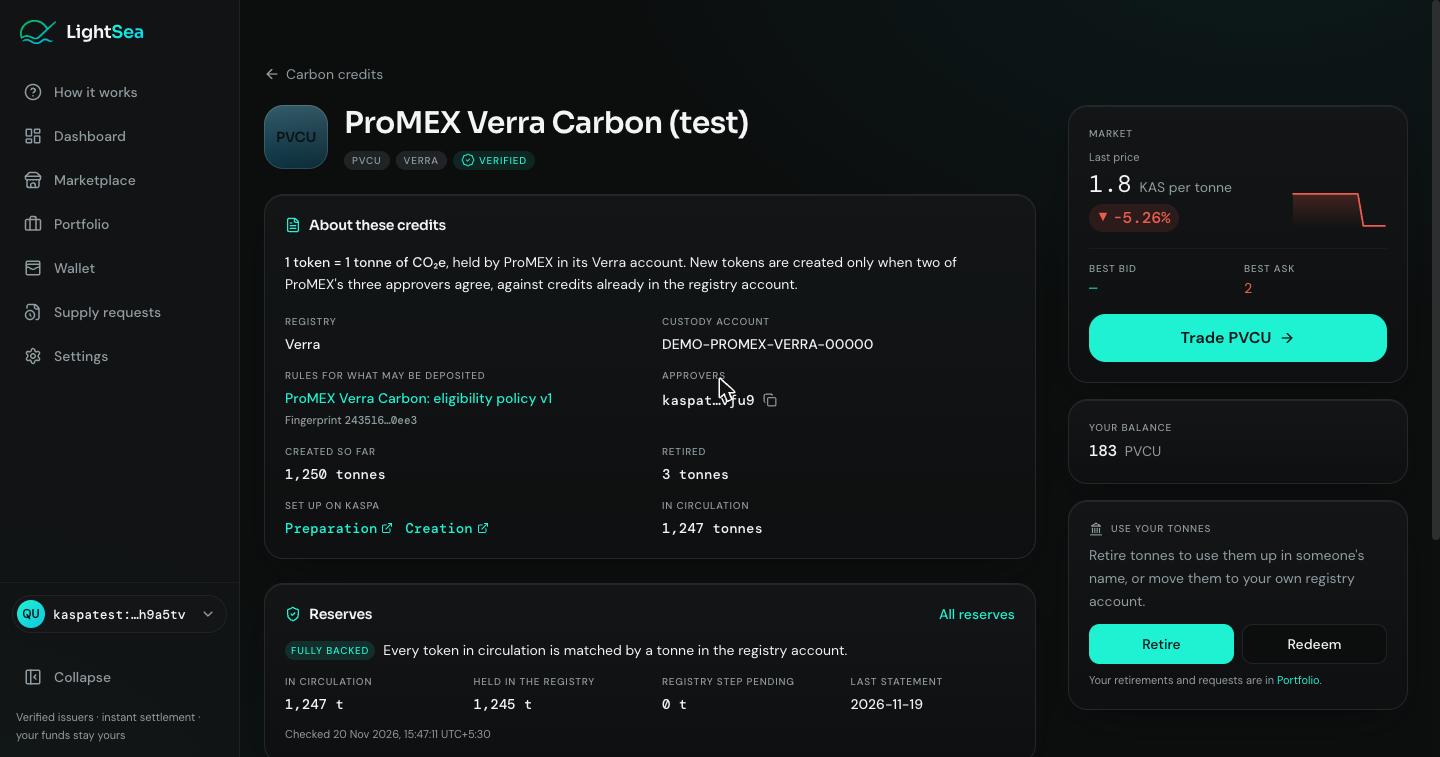
The token page tells you what you are buying: the registry, ProMEX's custody account, the rules for what may be deposited, the approvers, how many tonnes were created and retired, and the reserves.
On the right:
- The Market card shows the last price, the best bid and the best ask. Best bid is the highest price someone is offering to pay. Best ask is the lowest price someone is selling at.
- Your balance shows what you hold.
Press Trade PVCU to open the trade page.
3. Read the trade page
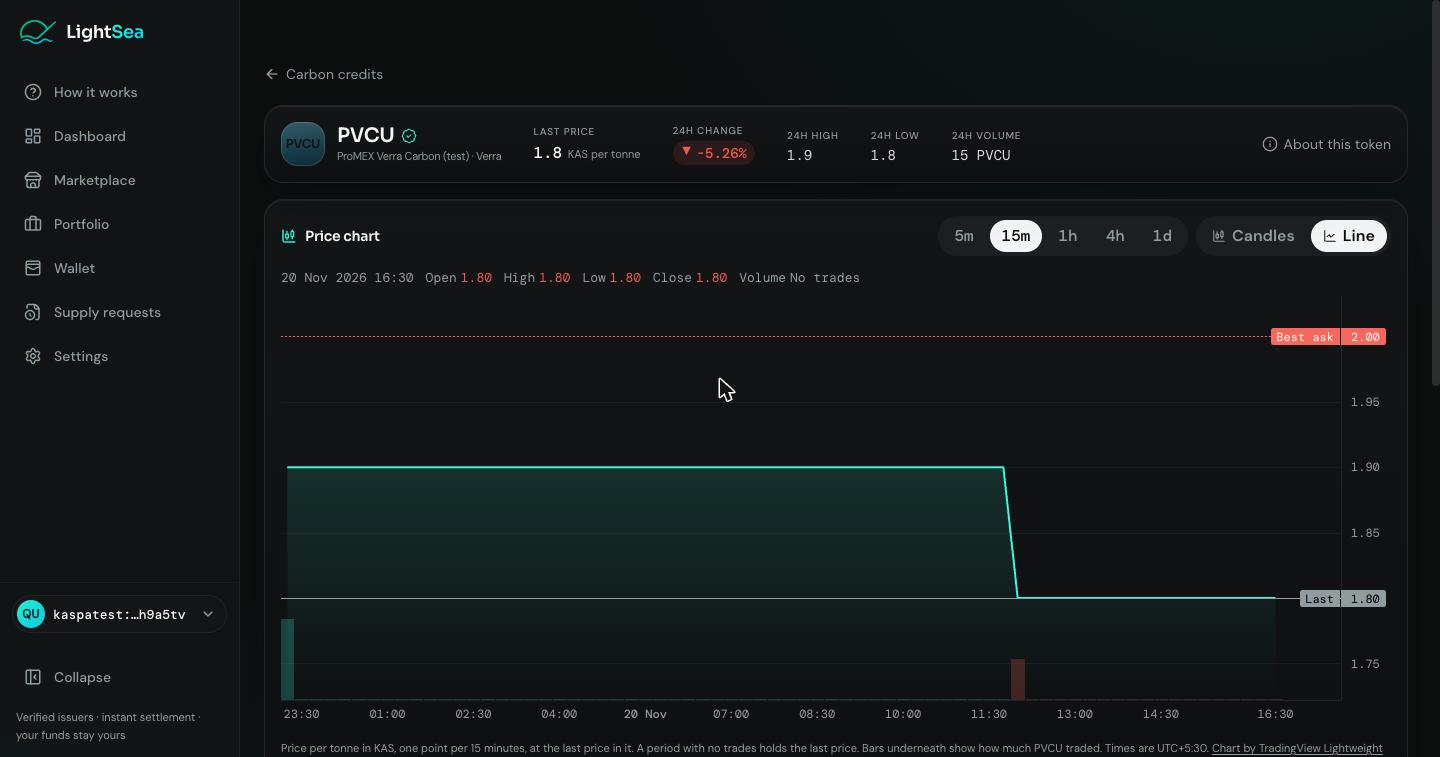
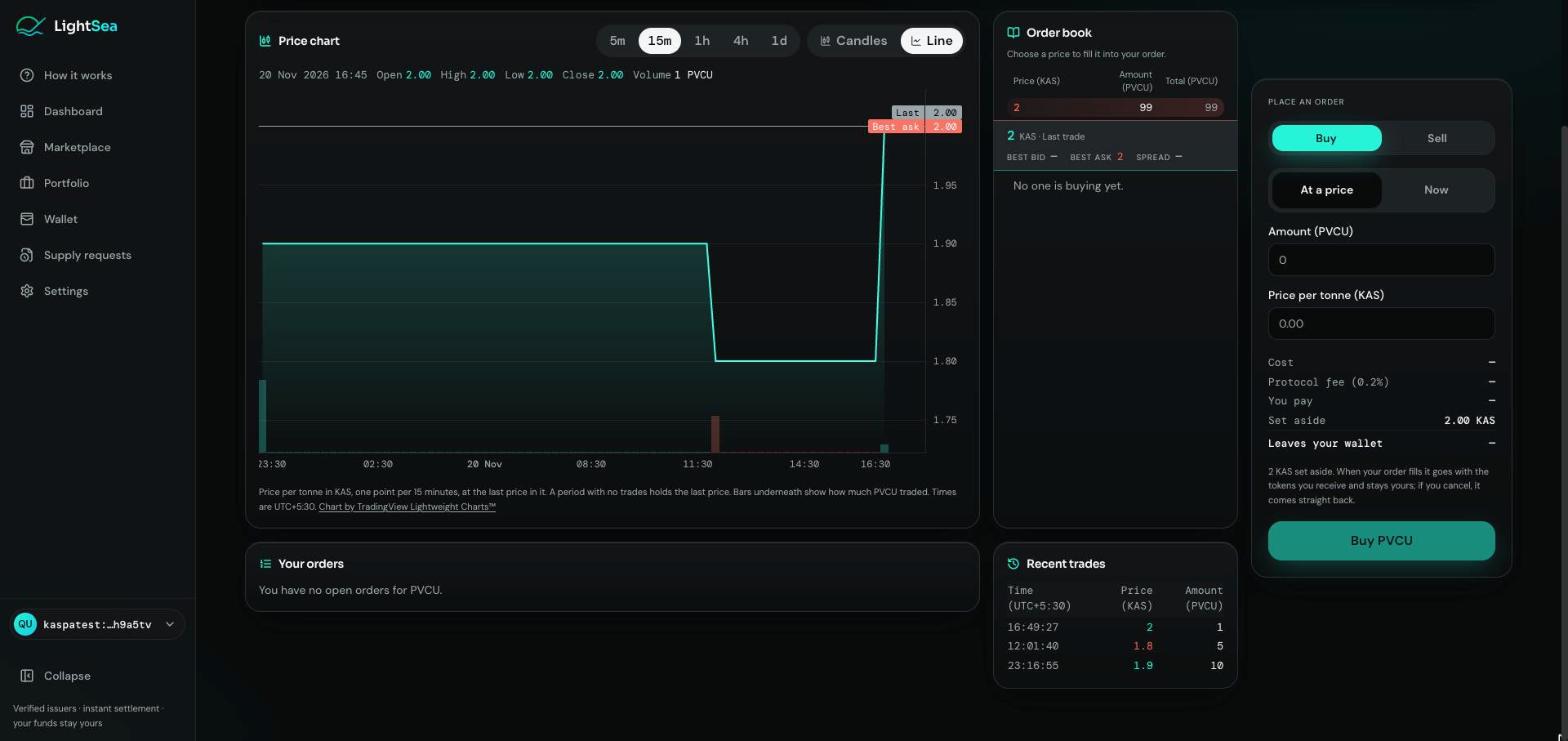
The top strip shows the last price, the change over 24 hours, the 24-hour high and low, and the volume. Below it is the price chart: pick 5m, 15m, 1h, 4h or 1d, and Candles or Line. The reading above the chart (Open, High, Low, Close, Volume) follows your pointer.
Scroll down. You see:
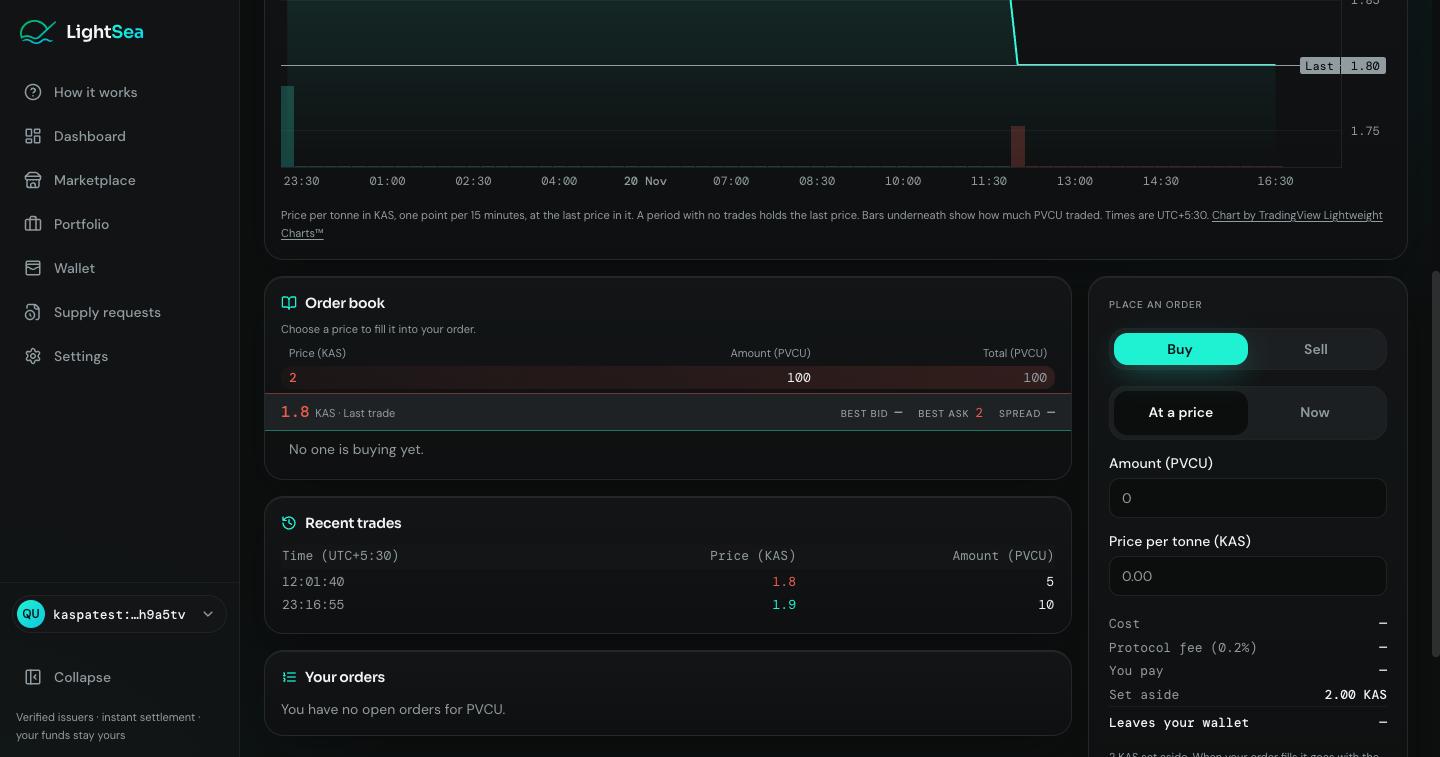
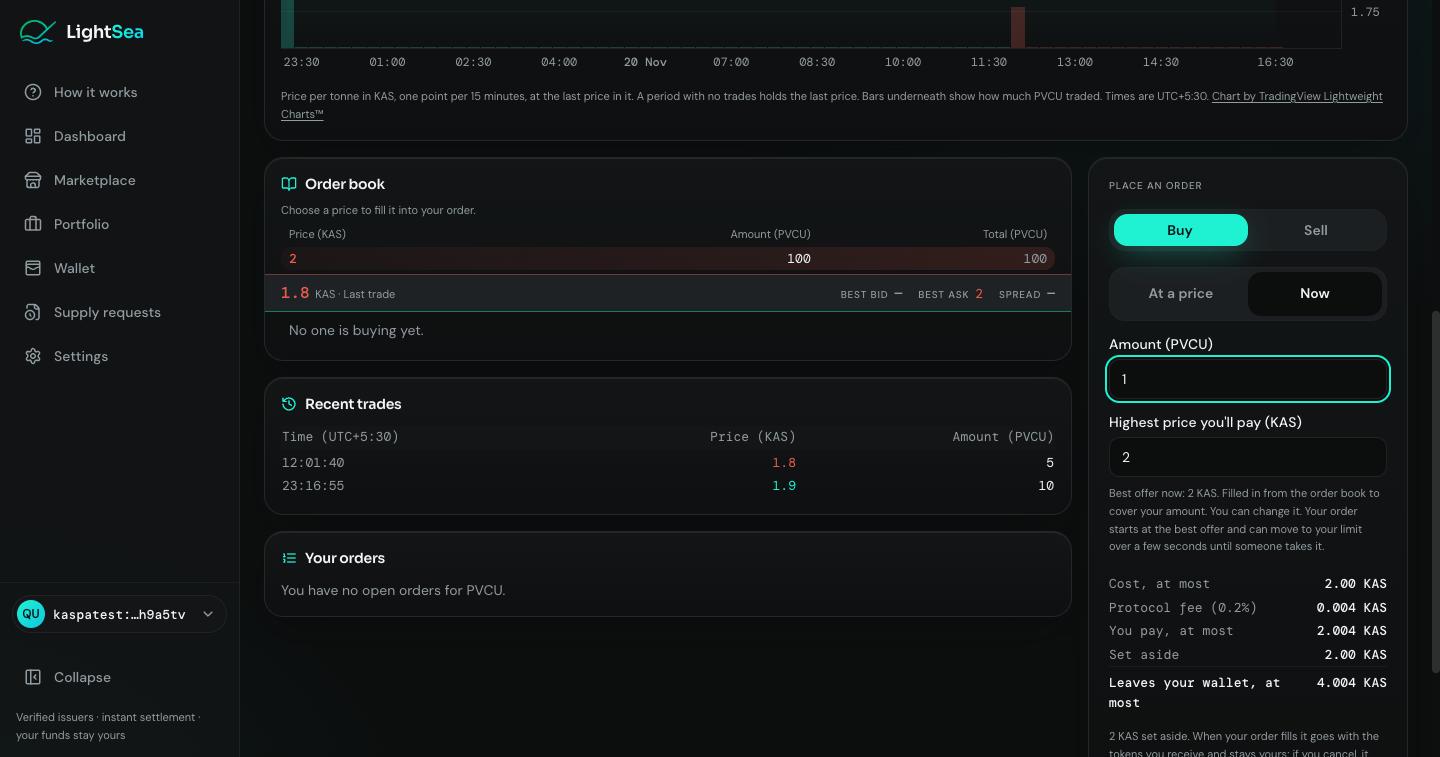
- The Order book. People selling are in red at the top. People buying are below the middle line (the line that shows the last trade price).
- Recent trades.
- Your orders.
- The Place an order form on the right.
4. Fill in the order form
- Choose Buy.
- Choose Now to take the best offer straight away, or At a price to wait for a seller at your price.
- Enter the Amount (whole tonnes for carbon).
- With Now, the Highest price you'll pay (KAS) fills itself in from the order book. It is the most you will pay per tonne. You can change it.
- Read the totals before you press anything:
- Cost, at most: amount × price.
- Protocol fee (0.2%): the trading fee.
- You pay, at most: cost + fee.
- Set aside: 2.00 KAS. This goes with the tokens you receive and stays yours. If you cancel, it comes straight back.
- Leaves your wallet, at most: everything above added up.
5. Place it and approve in your wallet
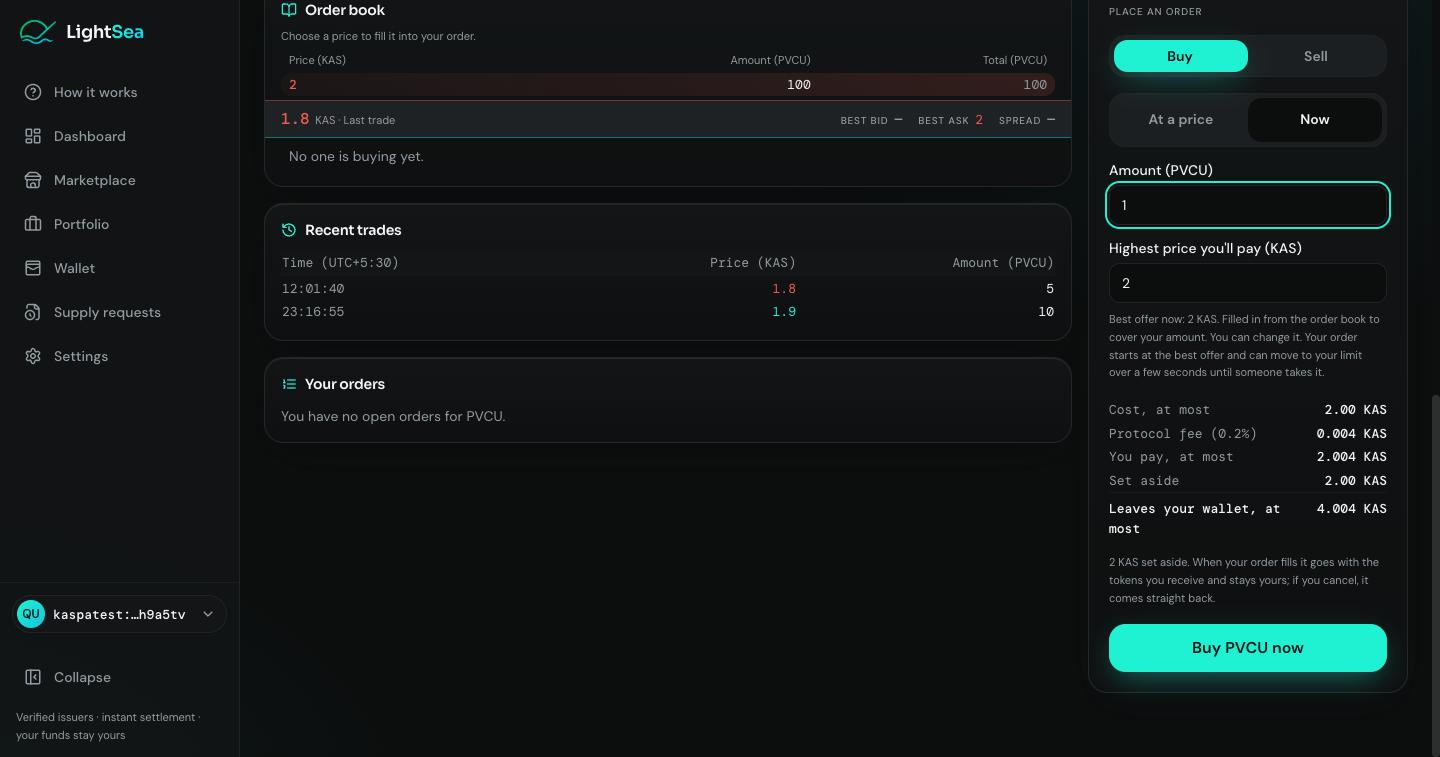
Press Buy PVCU now. The button shows a spinner while Light Sea prepares the order.
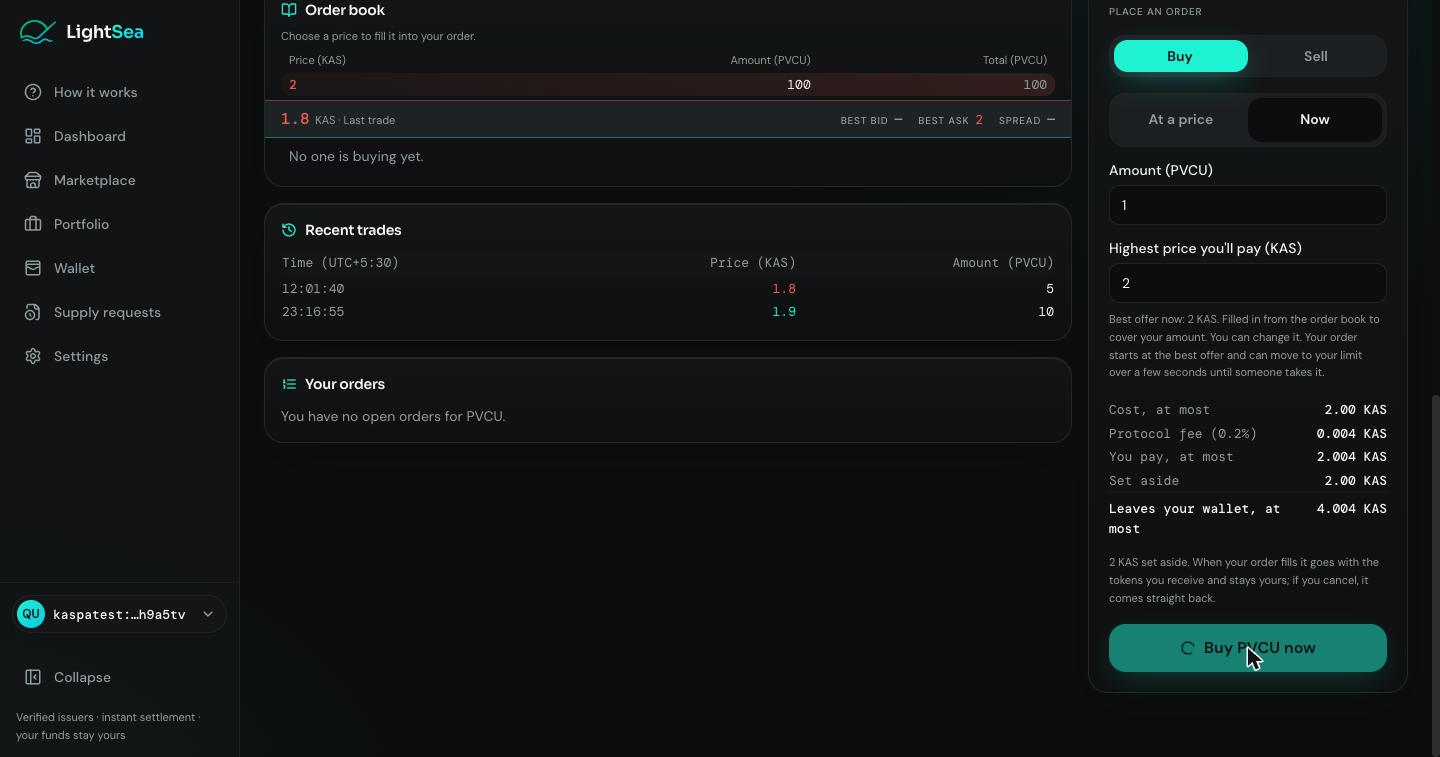
Approve the request in your wallet. It is one approval. Nothing is sent until you approve. If you reject it, nothing happens (test TR-21).
6. See the result
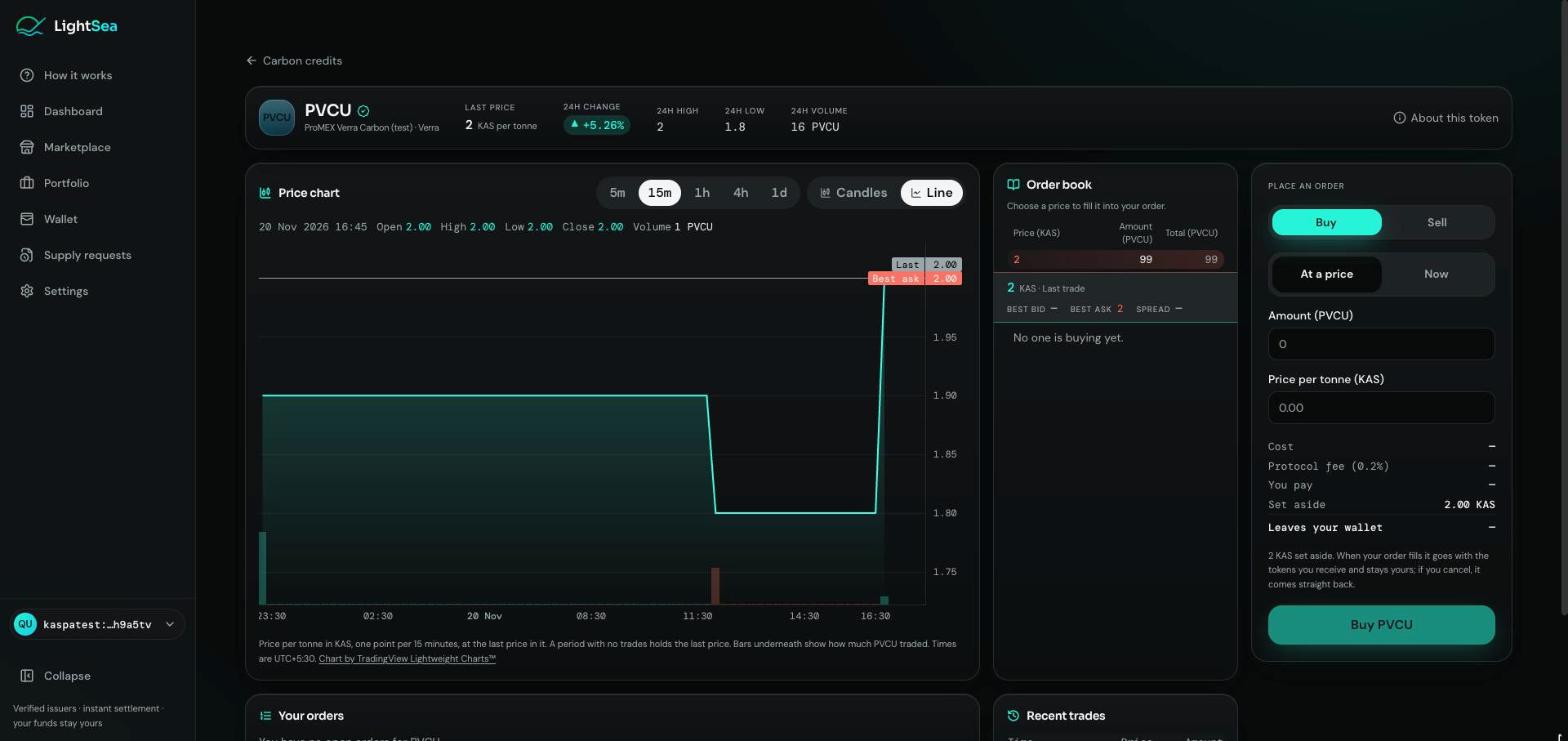
The order appears under Your orders as Pending for a few seconds, then fills. Then:
- the trade shows in Recent trades,
- the chart and the top strip update,
- the seller's offer in the order book shrinks by what you bought (100 → 99 here).
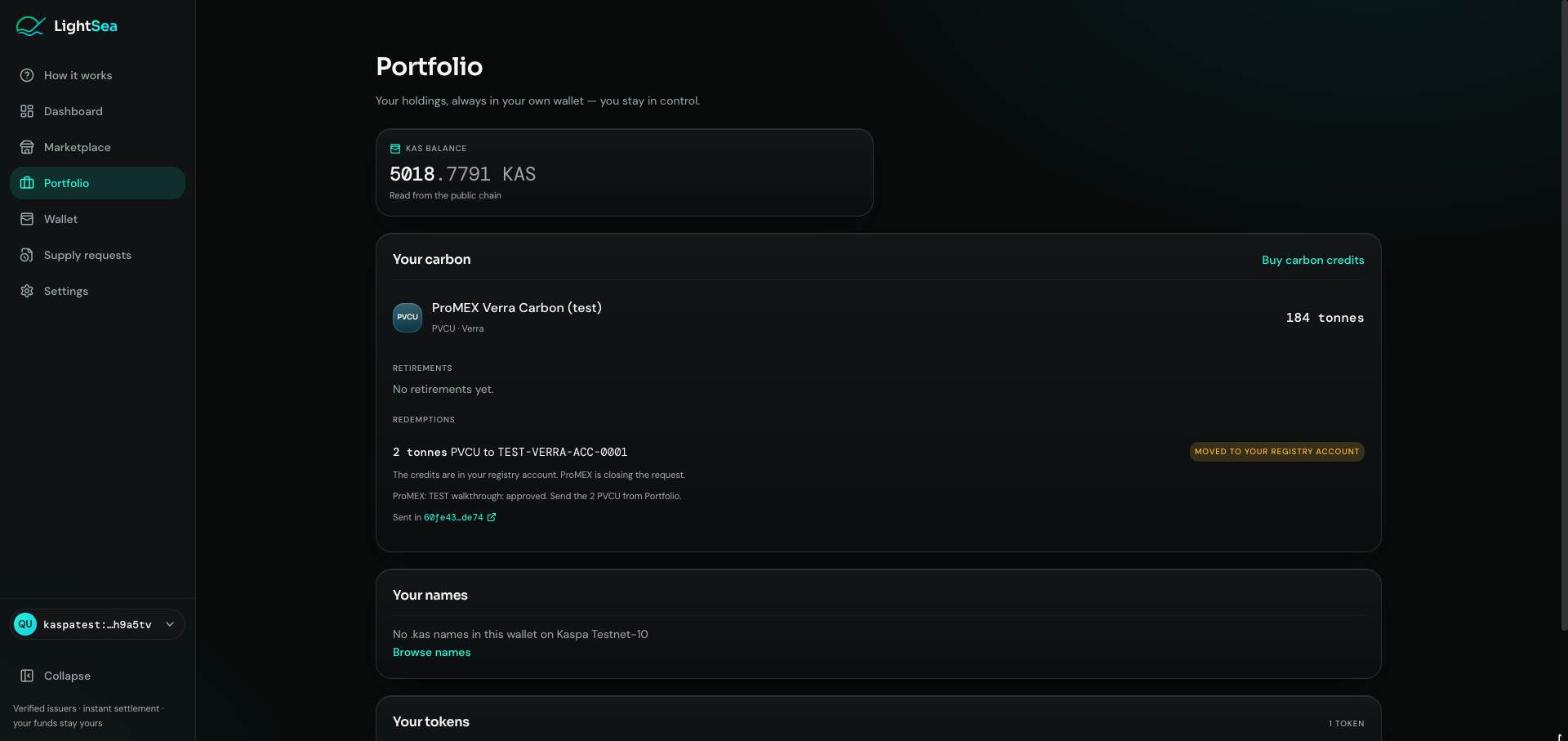
Portfolio shows the new balance (183 → 184 tonnes here).
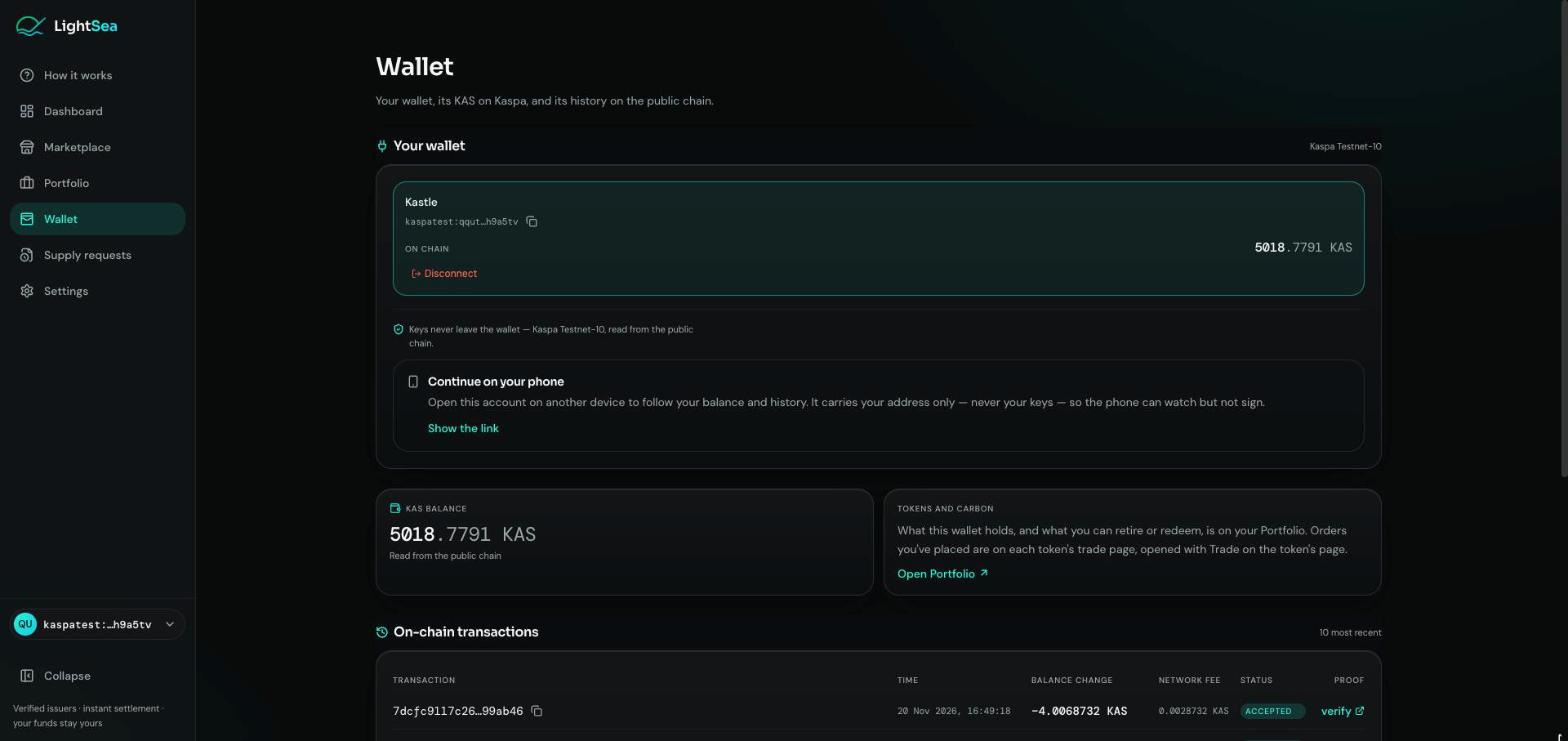
Wallet › On-chain transactions shows what the order did to your KAS balance. Here it is −4.0068732 KAS: 2.00 for the tonne, 0.004 fee, 2.00 set aside that now sits with your tokens, and the network fee (0.0028732 KAS).
What to check (and report if different)
Messages you may see
| Message | What it means | What to do |
|---|---|---|
| LightSea can't reach Kaspa right now, so nothing was sent. Try again in a minute. | Light Sea lost its connection to Kaspa. Nothing left your wallet. | Wait a minute and press the button again. Report it if it keeps happening. |
| No one is selling | Nobody is selling this token right now. | Use At a price to wait for a seller, or come back later. |
| Only N on offer | You asked for more than people are selling at your price or lower. | Lower the amount, or raise the price. |
| Not enough KAS | Your wallet doesn't have enough KAS for everything that would leave it. | Top up test KAS, or buy less. |
Buying at a price (an order that waits for a seller)
- Choose Buy, then At a price.
- Enter the Amount and your Price per tonne (KAS). Use a price below the best ask.
- Press Buy PVCU.
- Approve in your wallet.
Your order shows in the Order book, below the middle line (the buying side), and under Your orders until a seller takes it. Nothing more needs your approval when it fills. To change or cancel it, see Guide 7.