Before you begin
Who: every tester, once. Tests: GW-01 to GW-04, GW-12, GW-15.
Welcome, and thank you for testing Light Sea. Read this page once, before any other guide. It helps you set up a wallet, get test KAS, sign in, and report what you find.
Everything in these guides runs on Kaspa Testnet-10, Kaspa's test network. Test KAS and test tokens have no value. Nothing you do here touches real money.
Keep testing and real money apart. Never use a real (mainnet) wallet, or its recovery phrase, for testing. Make a new wallet just for testing.
Words you will see
| Word | What it means |
|---|---|
| Wallet | A browser add-on that holds your KAS and tokens. It asks you to approve every action. Kastle is the main one. |
| KAS | Kaspa's coin. Prices in Light Sea are in KAS. On Testnet-10 you use test KAS, which is free. |
| Token | Something you hold in your wallet on Kaspa. For carbon, one token is one tonne: PVCU tokens come from Verra credits, PECO tokens from EcoRegistry credits. |
| Approve | Confirm an action in your wallet's window. Nothing happens until you do. |
| Transaction id | The long code the app shows after something moves on Kaspa. It links to the public record. |
| Test ID | A short code such as GW-01. Each one is a row in the test sheets, where you record your result. |
1. What you need
- A desktop computer with Chrome (or another Chromium browser such as Brave or Edge). Firefox and Safari can't run the wallets.
- Kastle, the main wallet, from the Chrome Web Store. Two other wallets also work: KasWare 0.10.0 or newer and Kaspire (desktop add-on). Use one wallet at a time, and start with Kastle.
- Two wallets (two accounts in Kastle is fine), so you can play both sides of a trade: the buyer and the seller.
- Test KAS in each wallet. About 500 test KAS per wallet is plenty. Ask the test lead to send you some, or use a Testnet-10 faucet (a website that gives out free test KAS).
- For the names tests: a .kas name in one wallet, registered on KNS's testnet app (Guide 8).
- For the dashboard tests: a ProMEX dashboard account. ProMEX creates it for you; there is no sign-up.
2. Set up Kastle
- Install Kastle from the Chrome Web Store and create a new wallet.
- Kastle shows a recovery phrase: a list of secret words that can restore the wallet. Write it down for this test wallet only.
- Open Kastle's settings and switch the network to Testnet-10. Your address now starts with
kaspatest:. - Add test KAS (see step 1). Kastle shows the balance within a few seconds.
- Pin Kastle to the Chrome toolbar, so it is always one click away.
Kastle's approval window opens on its own, and it can open behind Chrome. When the app says "Approve it in Kastle" and nothing seems to happen, look for that window.
3. Open the app without a wallet (GW-01)
Open https://lightsea.io. Every page opens without a wallet, and browsing never asks you to connect. The app asks for a wallet only when you do something: buy, sell, retire, list or make an offer.
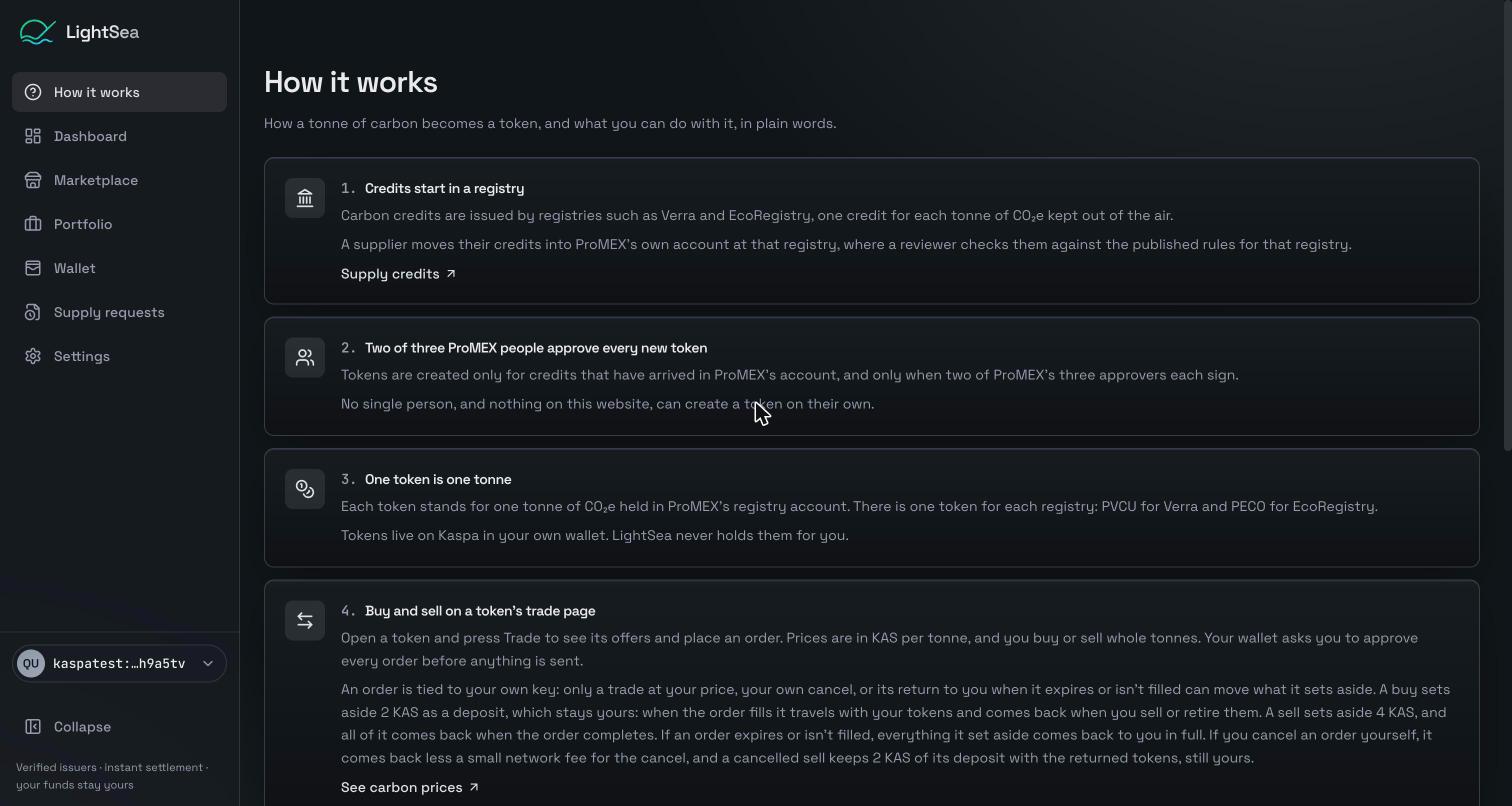
Open How it works in the sidebar and read it once. It explains, in plain words, how a tonne of carbon becomes a token and what you can do with it.
What to check
GW-01: with no wallet connected (a private window is easiest), open every page in the sidebar. Each page loads without an error. Nothing asks for an email, a code or a password. Pages that need a wallet say so and offer to connect one.
4. Connect (GW-02, GW-03)
Press Connect. You find it at the bottom left, and on any action that needs a wallet.
- The first time, accept the Terms of Service. On testnet they are a draft, and the text says so. You accept once per browser; disconnecting clears it.
- Choose Kastle (or KasWare / Kaspire).
- Approve the connection in the Kastle window.
What you should see: your shortened address at the bottom left.
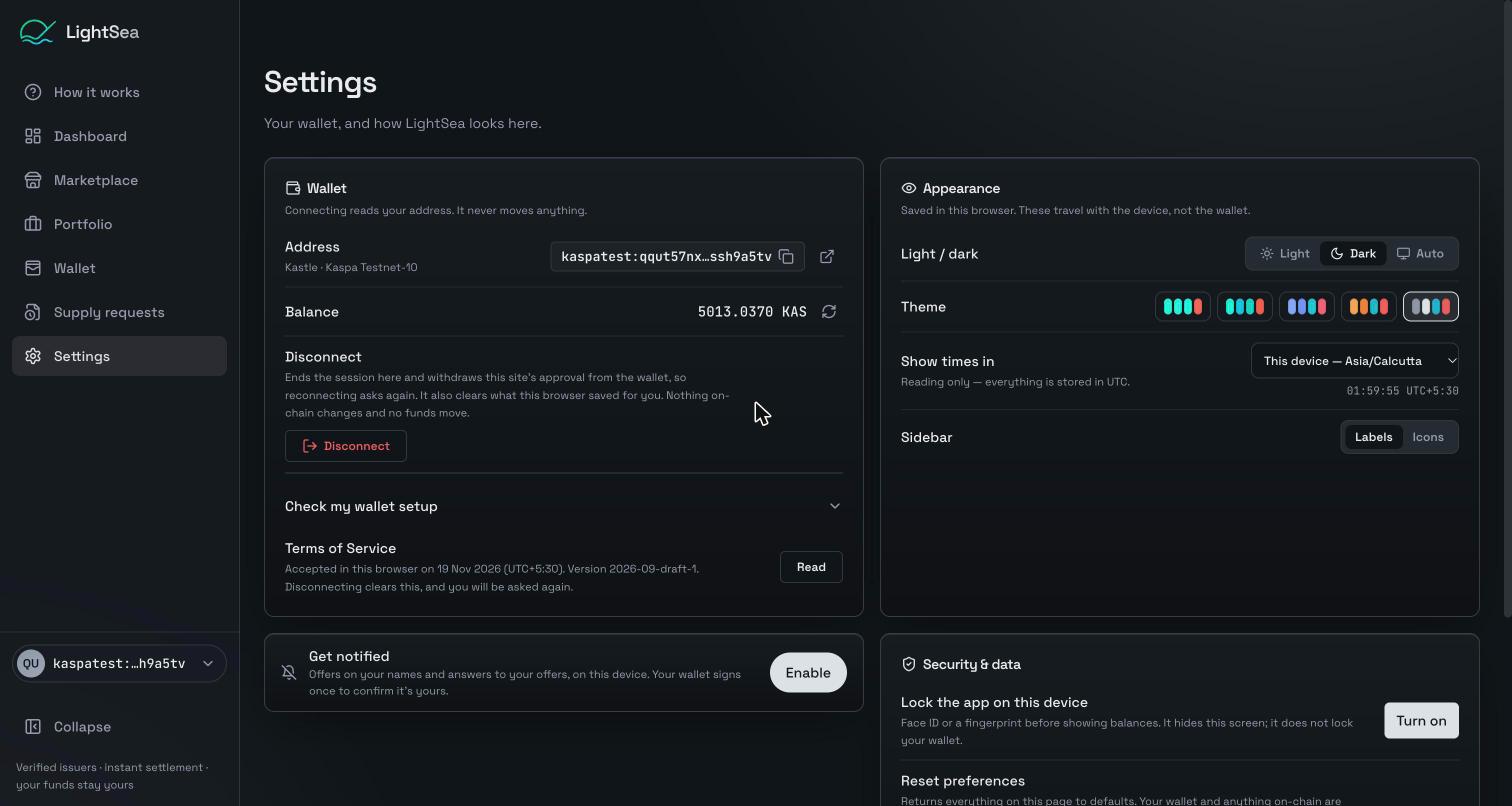
Reload the page. You stay connected. Disconnect (in Settings) ends the session and takes back the site's permission in your wallet. Nothing changes on Kaspa and no funds move.
What to check
GW-02: after connecting, the KAS balance on the app's Dashboard page (sidebar) matches the balance in Kastle.
What to check
GW-03: reload the page: you are still connected, and Kastle does not open. Press Disconnect in Settings, then reload: you are disconnected. Connect again: Kastle asks you again.
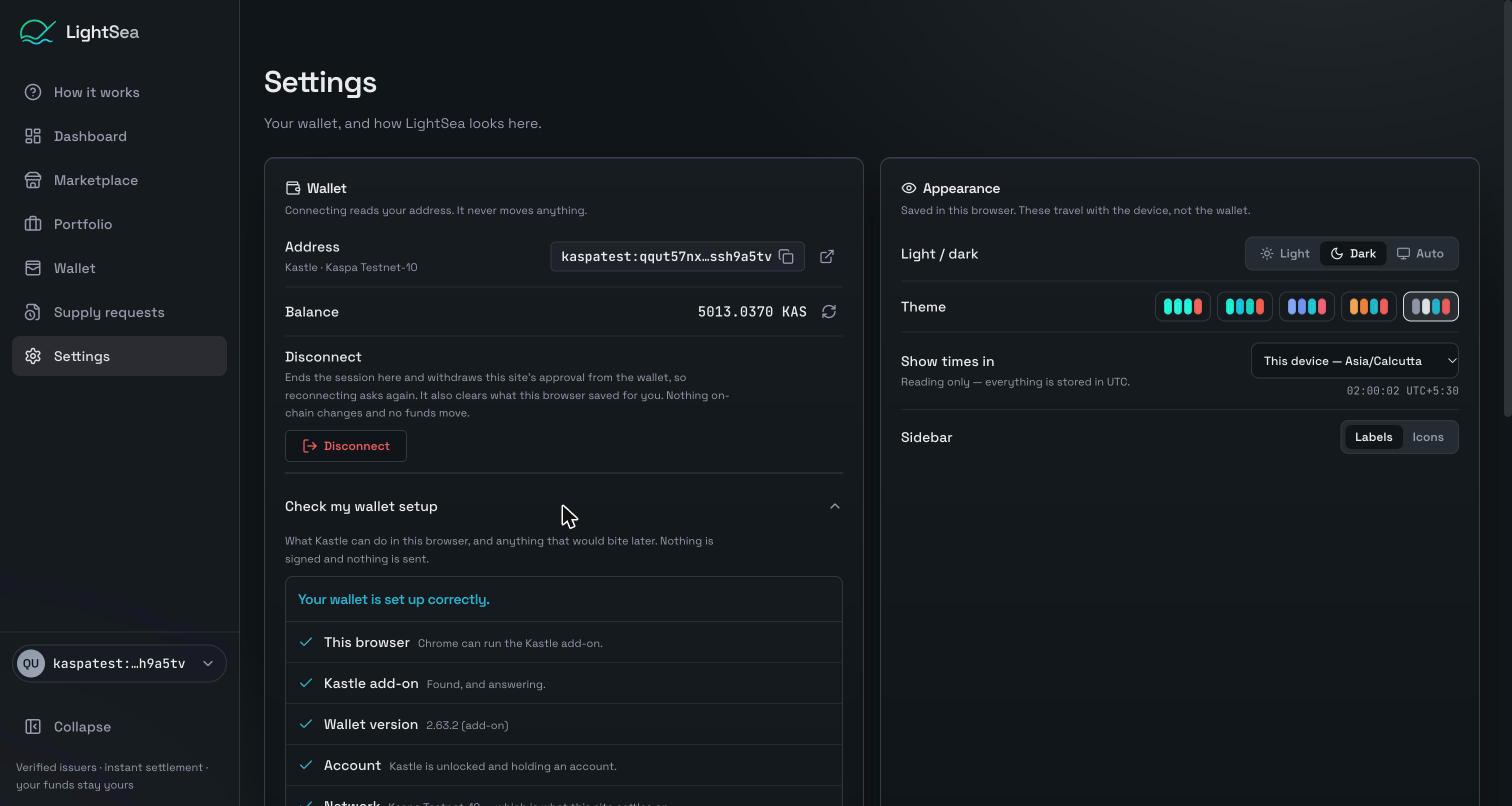
If something is wrong: the connect window and Settings › Check my wallet setup run the same checks: the browser, whether the add-on is found, the wallet version, whether the account is unlocked, the network, and whether this browser can keep you connected. Each failed check says what to do. Nothing is signed and nothing is sent.
The Wallet page (in the sidebar) shows your balance and your recent activity.
What to check
GW-15: open Wallet and compare it with Kastle's activity. The balance matches Kastle. Each row shows how much your balance changed and links to its transaction.
What to check
GW-04: while connected, switch Kastle to Mainnet (the real Kaspa network). The app must notice: a banner says the wallet is on the wrong network and how to fix it. Nothing can be signed until you switch back.
5. Two kinds of approval
Your wallet asks you to approve two kinds of things.
- Moving something (buy, sell, cancel, retire, redeem, list or buy a name). This is a transaction. Kastle shows the amounts and asks you to approve. The app checks the transaction before your wallet sees it. Whenever it stops before your approval, it says "Nothing was sent".
- Proving it's you (a supply request, a name offer, a redemption request, notifications). You sign one message, and no funds move. The signature is reused for about 30 days, so you are rarely asked twice.
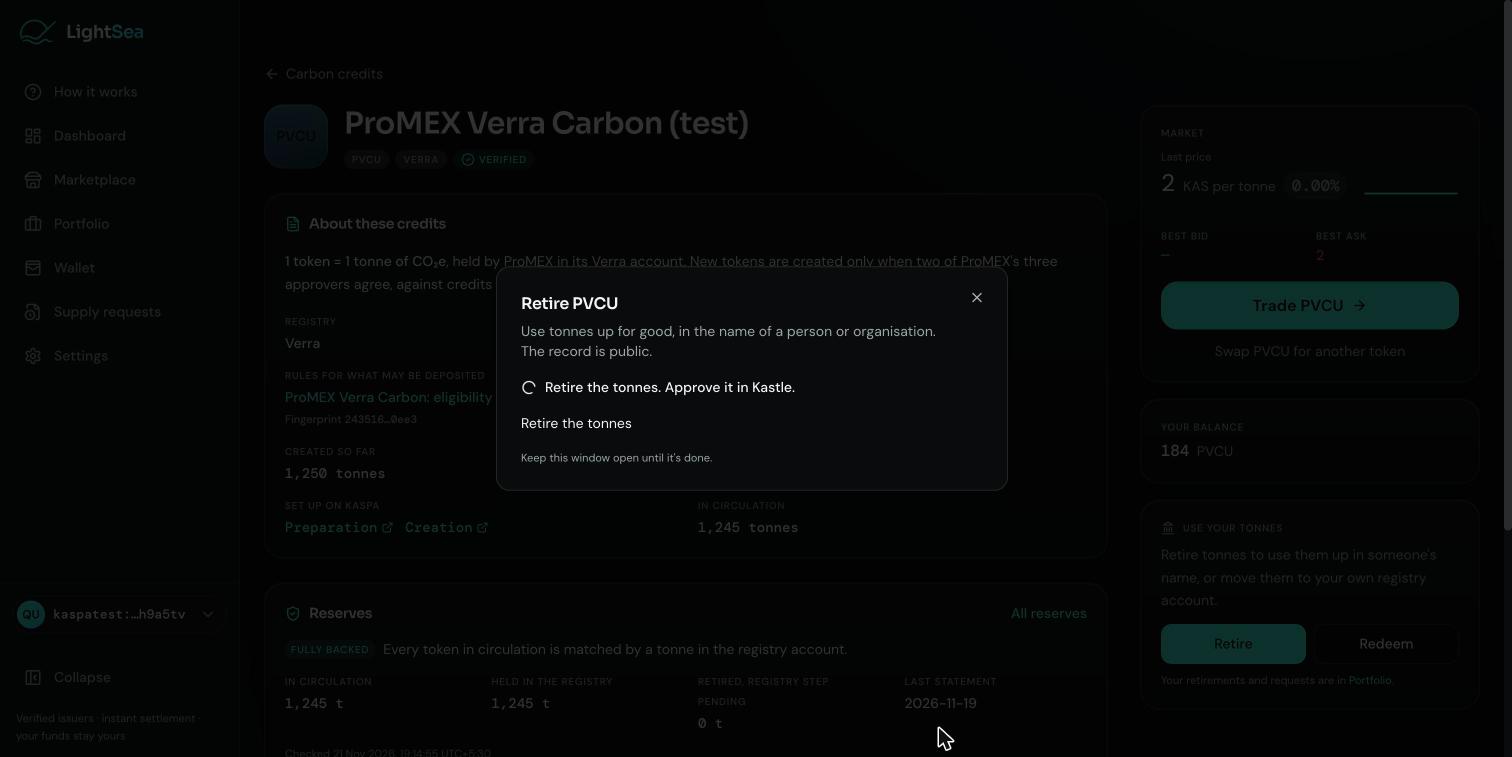
If you decline in Kastle, the app says "You declined in Kastle. Nothing was sent." That is never a defect.
6. Settings you may want
Open Settings in the sidebar. Under Appearance:
- Light / dark: Light, Dark or Auto, and five colour themes under Theme.
- Show times in: everything is stored in UTC. This only changes how times are shown to you.
- Sidebar: Labels or Icons.
Get notified turns on notices for offers on your names. It needs one signature.
What to check
GW-12: change each setting. Each change applies at once and is still there after a reload. Times on the Trade and Ledger pages follow Show times in.
7. The ProMEX dashboard (reviewers, approvers, owner)
This step is only for testers with a ProMEX dashboard account.
- Open https://admin.lightsea.io. The page header says ProMEX portal.
- Sign in with your work email.
- Enter the six-digit code. Normally it is emailed to you.
Testnet today, known issue F2: emailed codes aren't switched on yet. The code is fixed at 123456 for now. This will change before team testing ends.
Your role decides what you can do:
- Reviewer reads and annotates.
- Approver and Owner decide and sign.
Guide 9 has the full table of who can do what, and how many signatures each action needs. Approvers register their approver key (the wallet they sign with) once, in the dashboard's Settings (Guide 9).
8. Reporting what you find
- Record each result against its test ID in your copy of the test sheets (
csv/). - Log each defect in
csv/10_defect_log.csv. Include:- the test ID;
- what you did;
- what you expected;
- what you saw;
- a screenshot;
- any transaction id the app showed (every success message links one).
- Note which build you tested. The Version is at the bottom of Settings.
In these guides, a note such as "known issue F2" means the problem is already in the defect log, under that number.
Which guide for which flow
| Guide | Flow |
|---|---|
| 1 | Onboarding a new instrument (operators) |
| 2 | Supplying carbon credits (supply request and review) |
| 3 | Minting new supply (2 of 3 approvers) |
| 4A | Retiring carbon credits |
| 4B | Redeeming carbon credits to your own registry account |
| 5 | Buying tokens |
| 6 | Selling tokens |
| 7 | Changing the price and cancelling an order |
| 8 | Buying and selling names (.kas and dot.k) |
| 9 | The ProMEX dashboard, and who signs what |
| 10 | Swapping one token for another |