Before you begin
Who: testers check the result; the ProMEX owner and the approvers do the steps that need the portal. Network: Kaspa Testnet-10. Tests: ON-01 to ON-07.
You need: Chrome with https://lightsea.io open. Steps 1, 2, 3, 6 and 7 need no wallet. Step 4 needs a ProMEX portal account (https://admin.lightsea.io) and Kastle on Testnet-10 (Guide 0). Step 5 needs the owner's (or an approver's) portal account and the token's latest registry statement.
How a new token gets onto Light Sea
The ProMEX team and a developer set up a new carbon token. You don't do the setup. You check the result, one test at a time.
| Who | What they do | You check it in |
|---|---|---|
| ProMEX team | Write the token's rules: which credits may be deposited. The text is fixed when the token is created and can't change afterwards. | Step 3 |
| A developer, with two of the three approvers | Create the token on Kaspa. Two of ProMEX's three approvers sign to create it. | Steps 1 and 2 |
| ProMEX owner | Switches the token on in Light Sea and gives it the verified mark, so it shows in Marketplace › Carbon credits. | Step 1 |
| Each approver | Registers their approver key in the portal, under Settings. | Step 4 |
| ProMEX owner | Uploads the token's first registry statement in the portal, under Reserves. | Step 5 |
| Testers | Check each part in the app and the portal. | Steps 1 to 7 |
After that, suppliers can deposit credits and approvers can create tokens for them (Guide 2 and Guide 3).
There are two carbon tokens on testnet today: PVCU (ProMEX Verra Carbon (test), Verra credits) and PECO (ProMEX EcoRegistry Carbon (test), EcoRegistry credits). Most screenshots in this guide show PVCU.
Other kinds need no setup:
| Kind | What has to be set up | Where it shows |
|---|---|---|
| Carbon token (1 token = 1 tonne of CO₂e) | Everything in the table above. Traded in whole tonnes. | Marketplace › Carbon credits, and also Tokens |
| Ordinary token | Nothing. It appears on its own. ProMEX can add the verified mark. | Marketplace › Tokens (step 6) |
| KRON token (an older token format) | Nothing | Marketplace › Tokens (step 7) |
| .kas and dot.k names | Nothing. A name is not a token: any wallet that owns one can list it. | Marketplace › Names (Guide 8) |
If ProMEX withdraws or pauses a token
- Withdrawn: ProMEX removes the verified mark. A carbon token then also leaves Marketplace › Carbon credits. It stays in Tokens, without the mark. Orders already placed stay, and anyone can still fill or cancel them.
- Deposits paused (carbon tokens only): suppliers can still file a deposit, but Recommend in the portal is refused.
1. The token appears in the Marketplace
- Open https://lightsea.io and go to Marketplace.
- Open the Carbon credits tab.
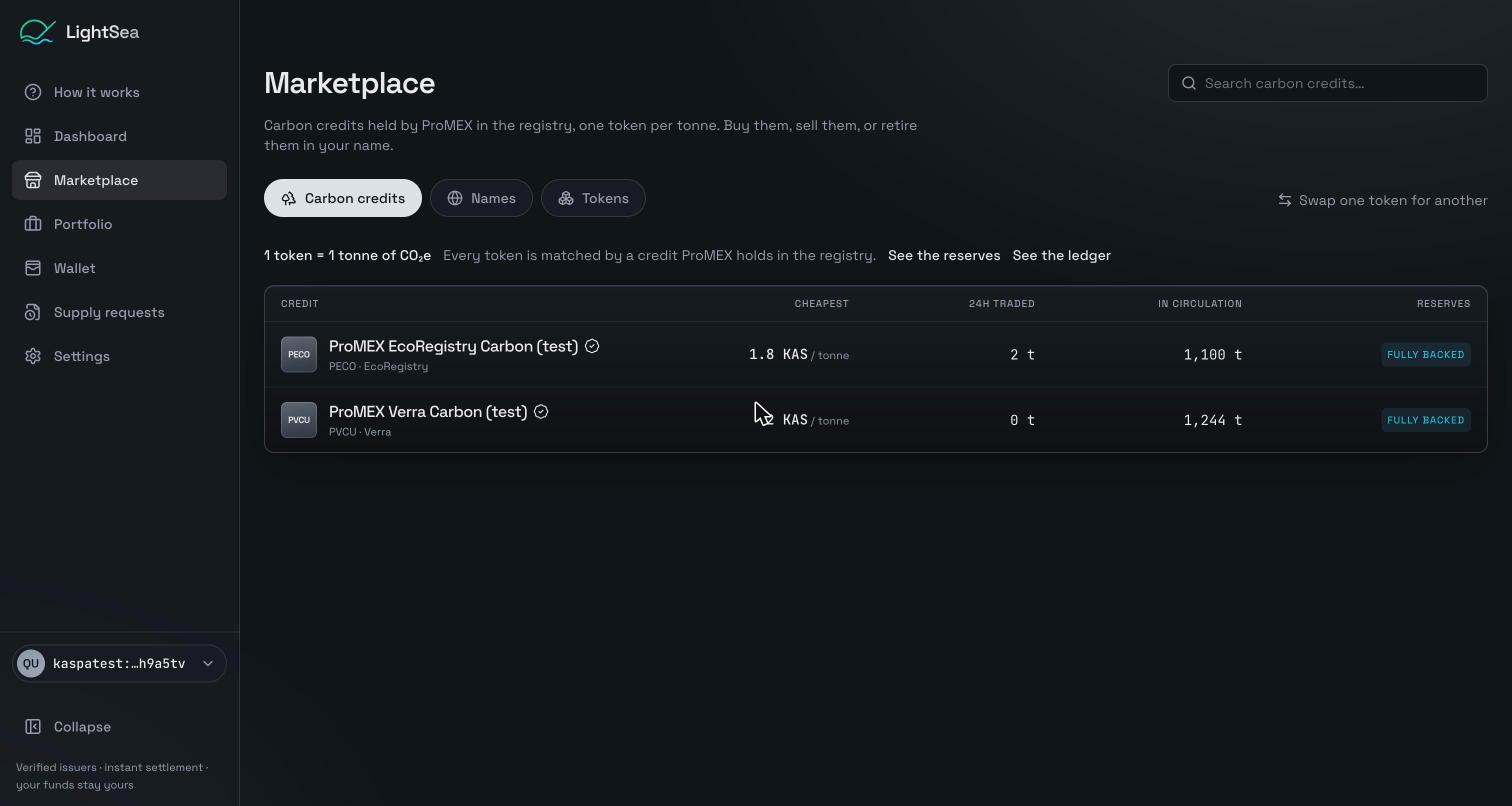
You should see the token in its own row:
- Its full name, with the verified mark (a tick in a circle) next to it.
- Its symbol and registry under the name, for example "PVCU · Verra".
- The cheapest price, how much traded in the last 24 hours, and the tonnes in circulation.
- In the Reserves column: Fully backed, or 0 t before the first mint.
What to check
ON-01: the token is listed with its symbol, registry and verified mark, and Reserves reads Fully backed (or 0 t before the first mint).
2. The token's page
Click the token's row. Its page opens.
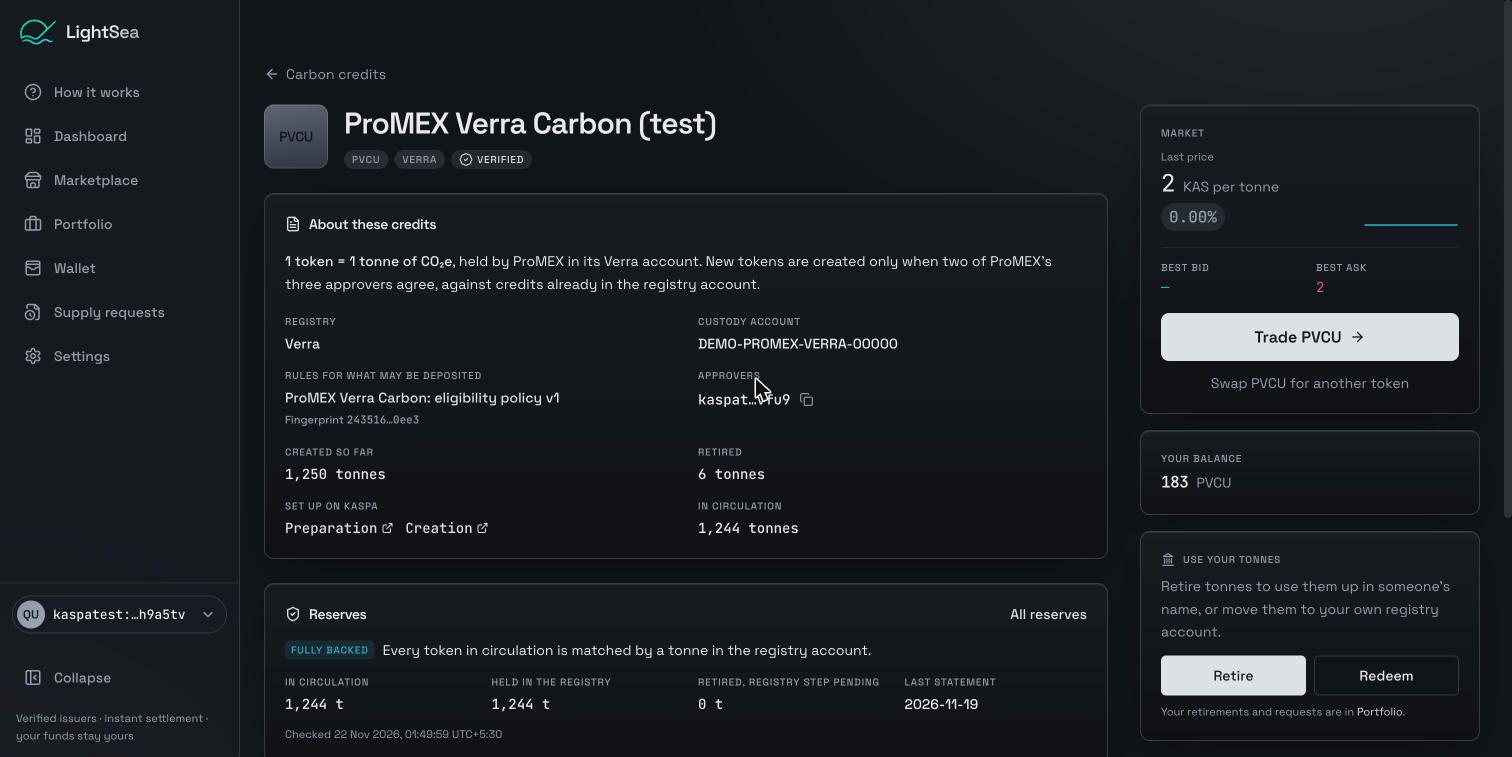
Under About these credits you should see:
- Registry: Verra or EcoRegistry.
- Custody account: ProMEX's account at the registry. On testnet it is a placeholder, such as DEMO-PROMEX-VERRA-00000.
- Rules for what may be deposited: a link to the token's rules, with its fingerprint under it (for PVCU, "Fingerprint 243516…0ee3").
- Approvers: the shared address of ProMEX's three approvers, with a copy button. On testnet it starts kaspatest:ppmw732u and ends z3vfu9.
- Created so far, Retired and In circulation, in tonnes. In circulation is created so far minus retired.
- Set up on Kaspa: two links, Preparation and Creation, to the records that set the token up.
On the right, the Market card shows Last price, Best bid and Best ask, and a trade button named after the token (Trade PVCU).
What to check
ON-02: About these credits shows registry, custody account, rules link with fingerprint, approvers' address, created, retired and in circulation. The Market card shows last price, best bid and best ask, and a Trade button.
3. The rules page
On the token page, click the rules link under Rules for what may be deposited. For PVCU it reads ProMEX Verra Carbon: eligibility policy v1.
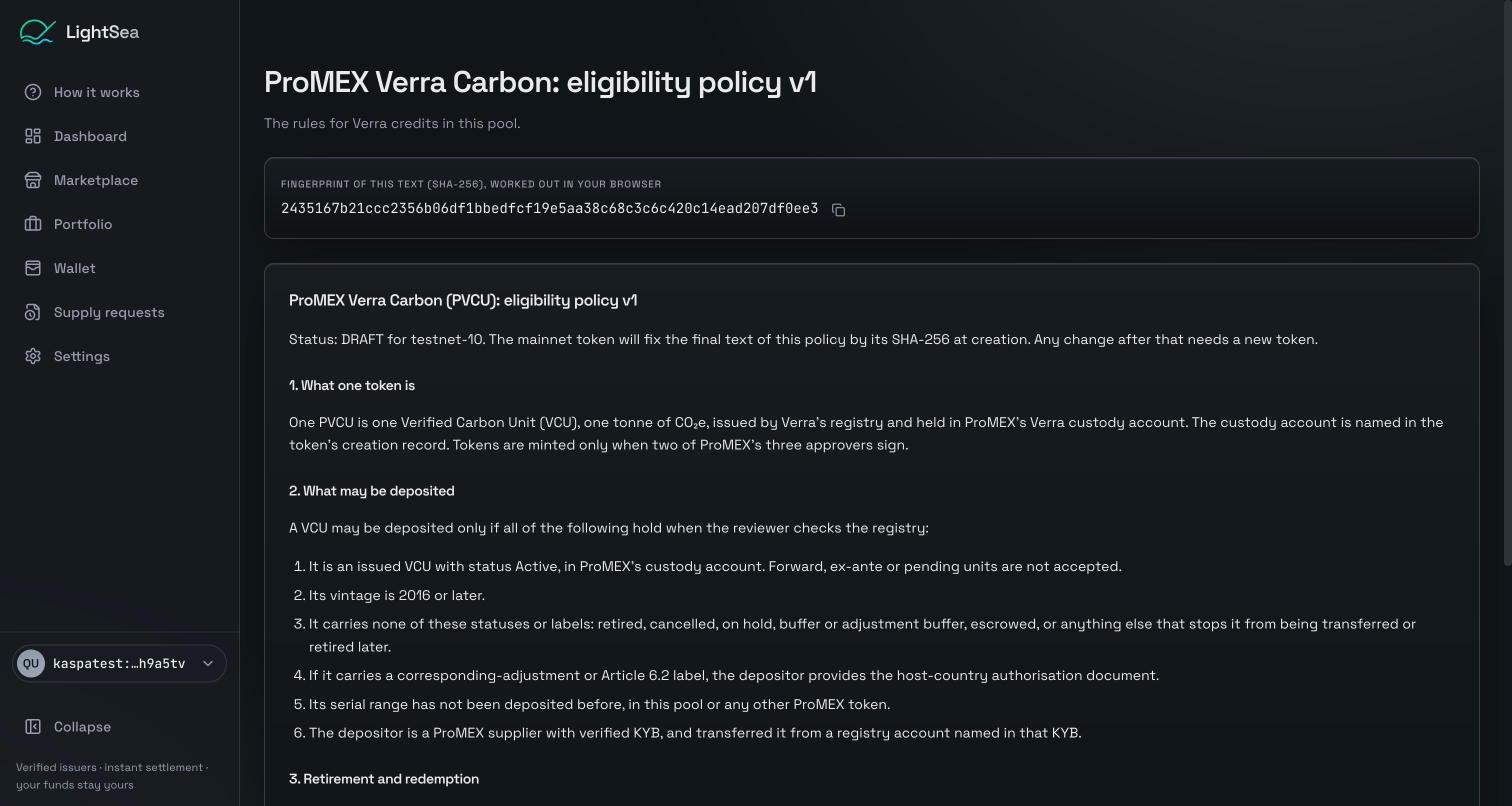
The rules open on their own page. At the top is the Fingerprint of this text (SHA-256), worked out in your browser.
- Compare it with the fingerprint on the token page. The first and last characters must be the same.
- Check that the page says the text matches the token.
Your browser works out the fingerprint from the published text. The token stores the fingerprint from the day it was created. If even one character of the text had changed since, the two would not match.
| Token | Fingerprint starts with | Fingerprint ends with |
|---|---|---|
| PVCU (Verra) | 2435167b | 0ee3 |
| PECO (EcoRegistry) | 772e9223 | 09df |
What to check
ON-03: the rules open, and their fingerprint matches the token page.
4. Approvers register their keys (portal)
Approvers sign mints and retirements with a key. The portal only counts a signature from the key the approver registered.
On testnet, only one of the three approver keys is in a browser wallet: the ProMEX owner's Kastle wallet. The other two are test keys that no wallet holds. A developer registers them for the approvers. So on testnet the owner checks that a real key is accepted, and the approvers check that a wrong key is refused.
A real approver key is accepted (the owner, on testnet):
- Sign in at https://admin.lightsea.io (Guide 9 step 1).
- Open Settings.
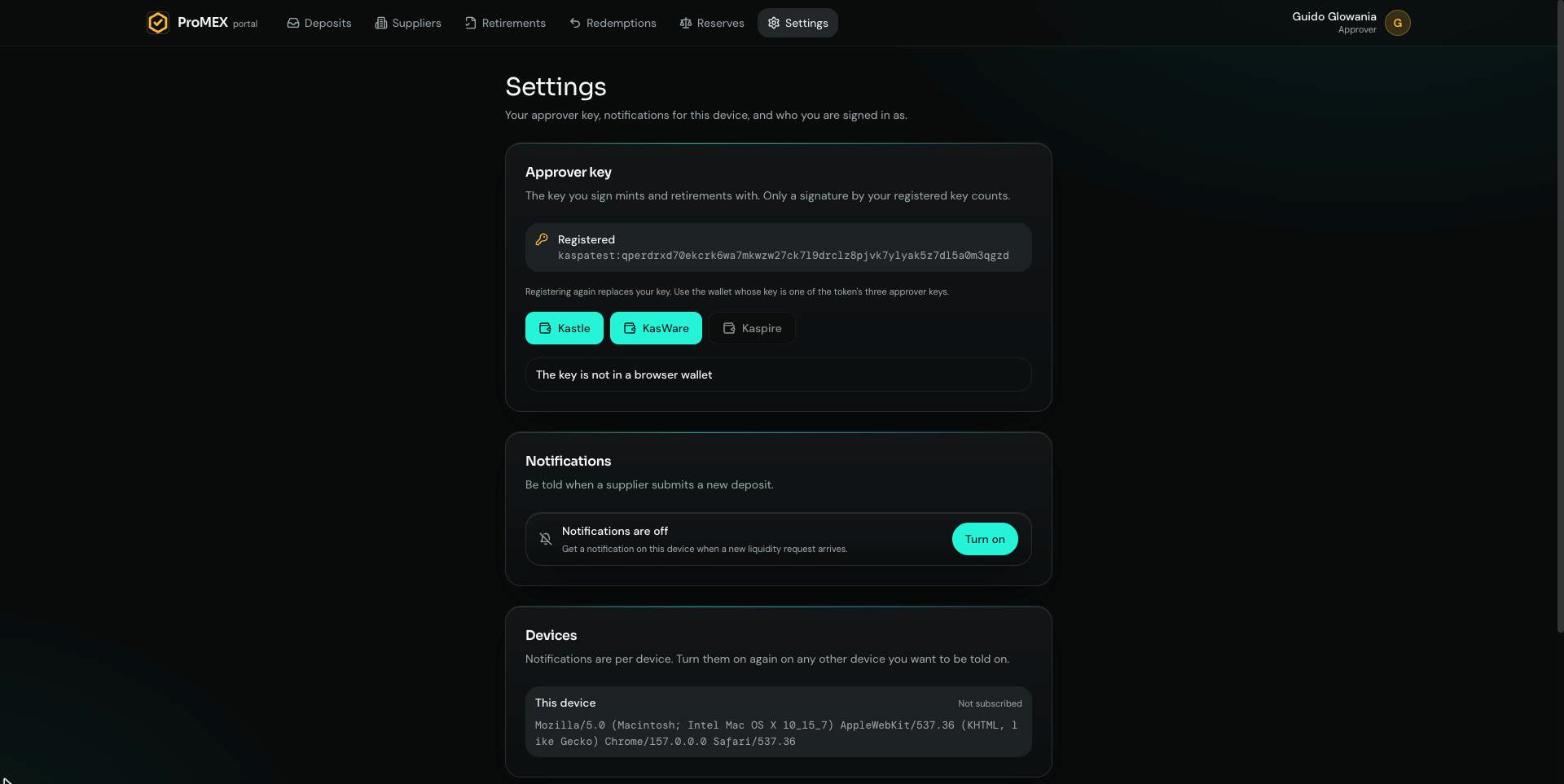
- Under Approver key, press Kastle (or KasWare or Kaspire, whichever wallet holds your approver key).
- Approve the request in your wallet. You sign a message. No KAS is sent.
You should see Registered, with your key's address under it.
A wrong key is refused (each approver):
- Sign in as an approver and open Settings.
- In Kastle, switch to an account whose key is not one of the three approver keys, for example your usual test account.
- Under Approver key, press Kastle and approve the request in your wallet.
You should see a clear message refusing the key because it is not one of the token's approvers. The key under Registered does not change.
Registering again replaces your key, as the page says. So only try a wrong wallet while signed in as an approver, never as the owner. If the refusal failed, the owner's real key would be replaced.
Known issue F1 affected this test. It was fixed on 20 Nov, so test it again.
What to check
ON-04: a real approver key is accepted and shown under Registered. A key that is not an approver's is refused with a clear message.
5. Reserves (portal, then the app)
The owner (or an approver) does steps 1 to 3 in the portal. Anyone can do step 4 in the app.
- In the portal, open Reserves. Each token has its own card, with its registry and custody account under the symbol.
- On the token's card, press Upload a registry statement. Enter the statement's date and the tonnes it shows, and attach the statement file.
- Press Refresh (top right).
You should see on the token's card:
- The token's custody account, for example "Verra · custody account DEMO-PROMEX-VERRA-00000".
- The status Reconciled. This means Kaspa, the ledger and the latest registry statement agree.
- Tokens outstanding, Redeemed, awaiting retire, Tonnes in custody and Registry retirements pending, then Last statement and Last checked.
If the card lists Unrecorded mints (tokens created outside the portal), the owner records each one with its serial numbers. Until then the reserves don't reconcile, and Recommend and Mint are blocked.
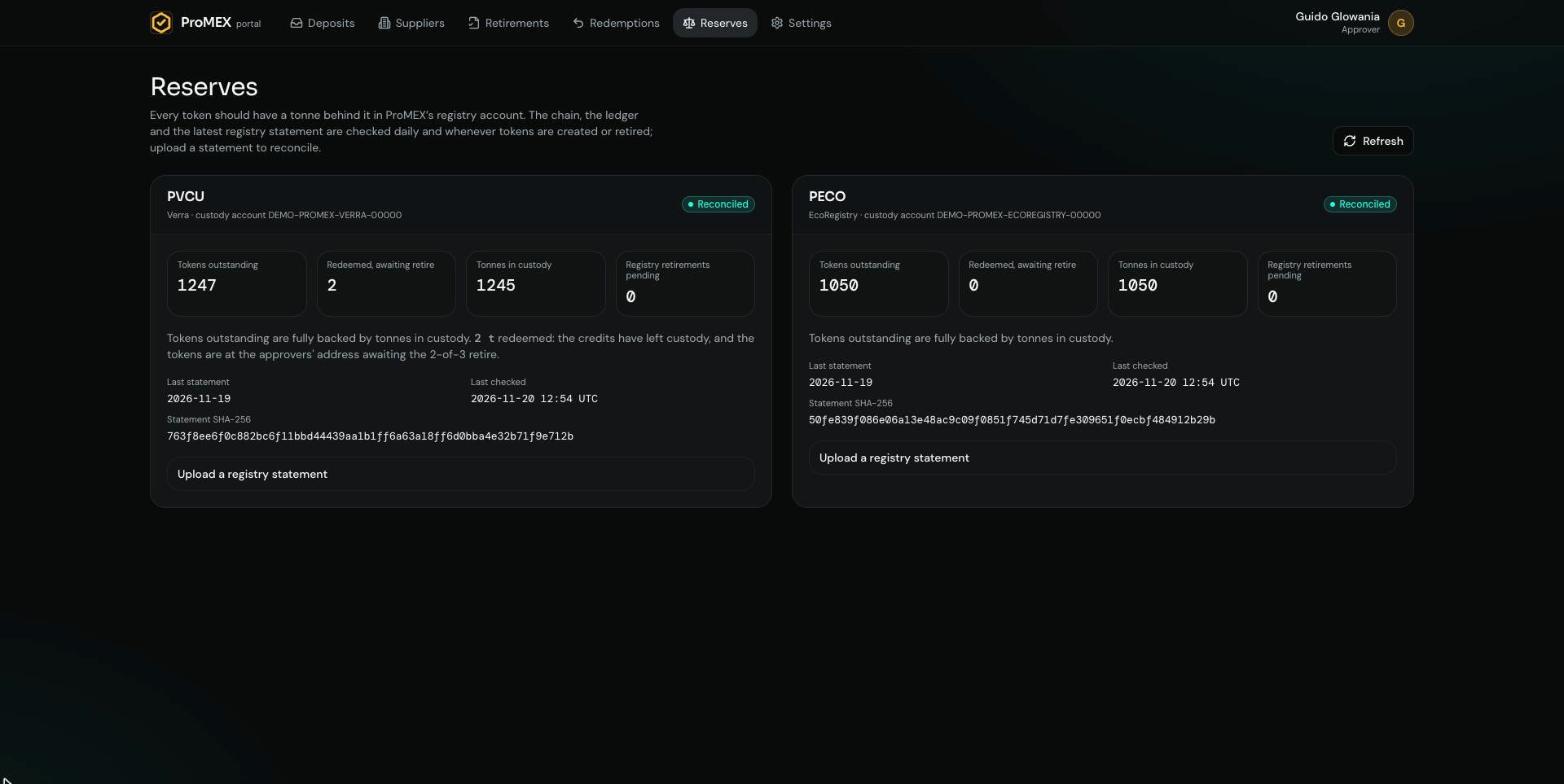
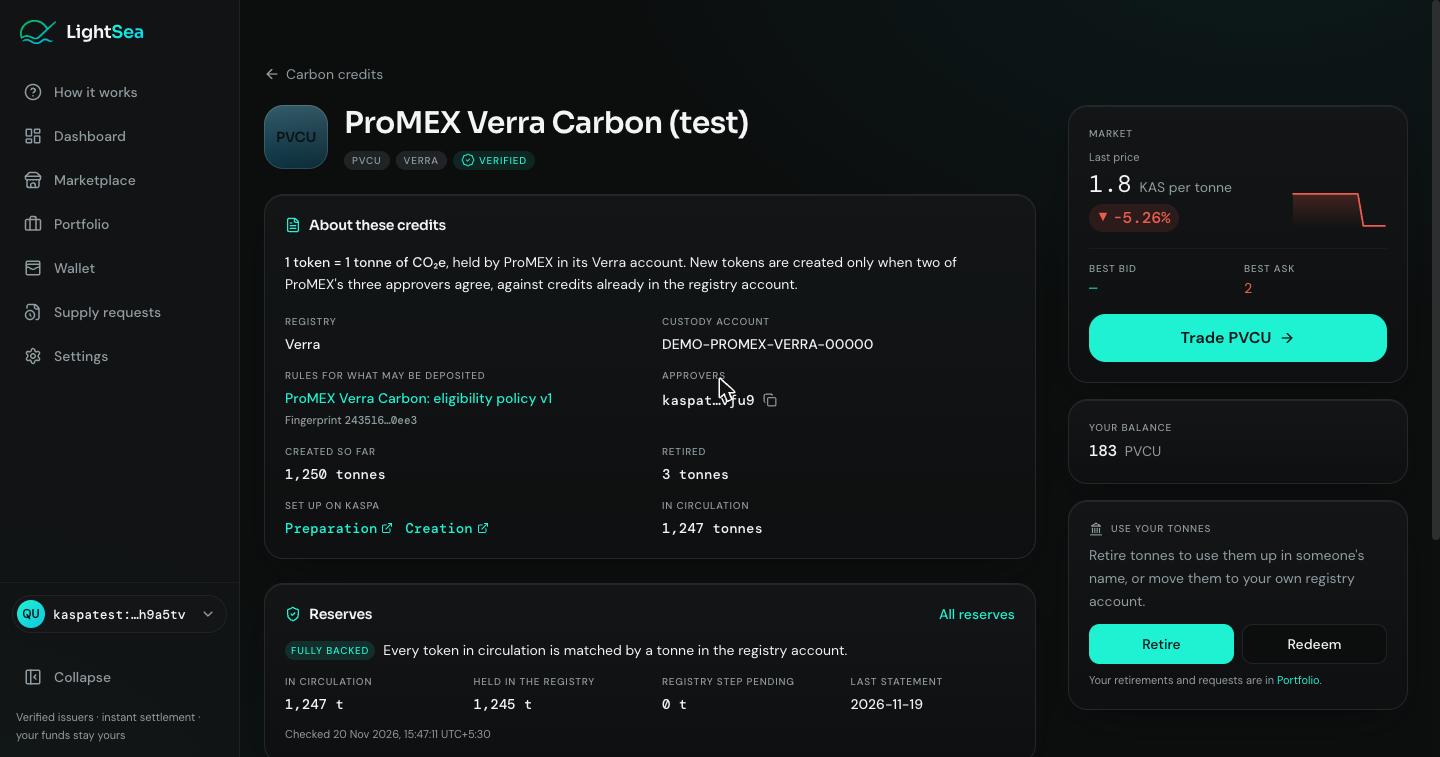
- In the app, open Marketplace › Carbon credits and click See the reserves. This is the public Reserves page. The token's page also has a Reserves card, with an All reserves link to the same page.
You should see the same figures as in the portal: the tokens in circulation and the tonnes held in the registry.
What to check
ON-05: the token's card shows its custody account and Reconciled, and the public Reserves page agrees.
6. Ordinary tokens appear on their own
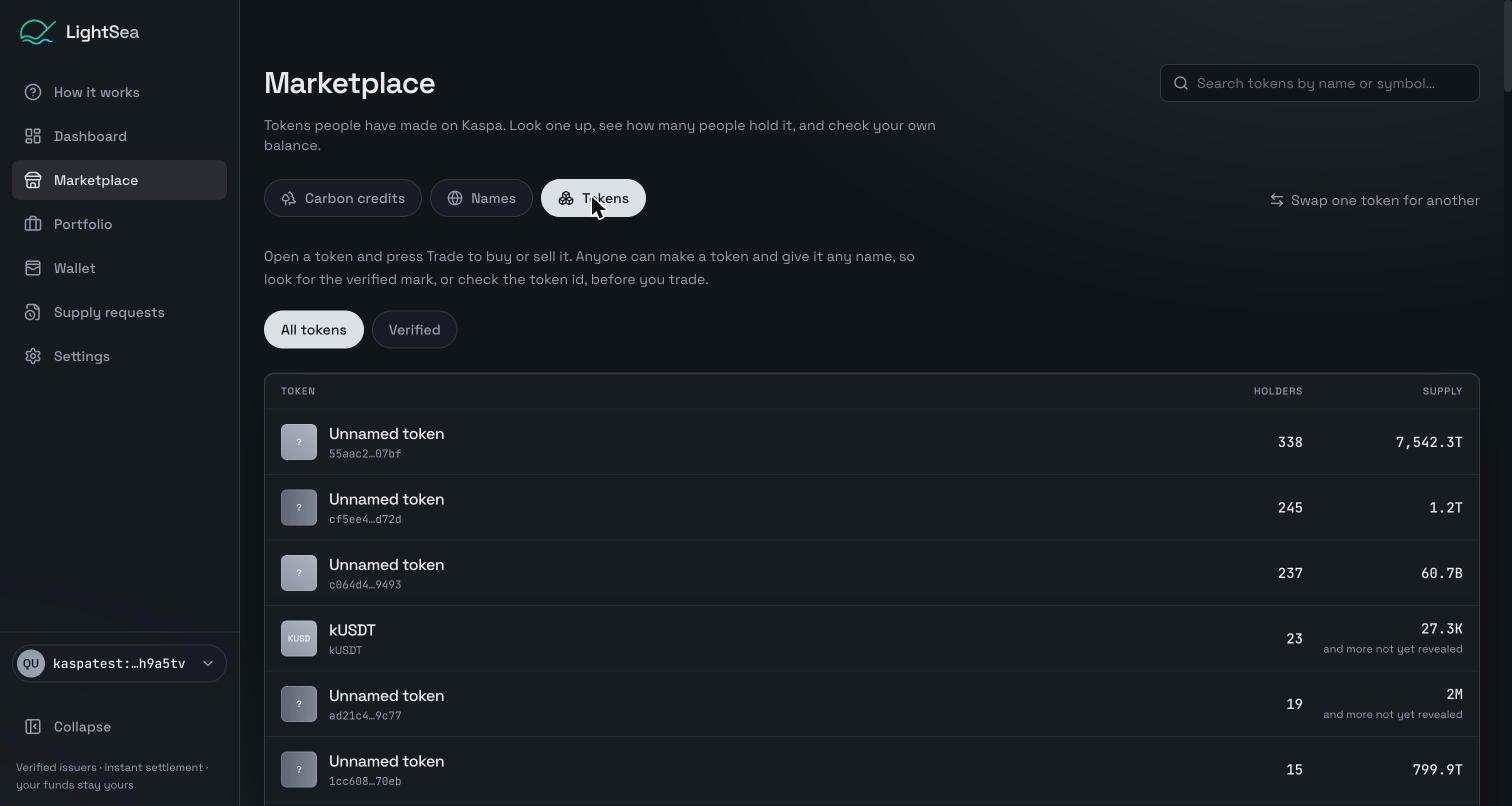
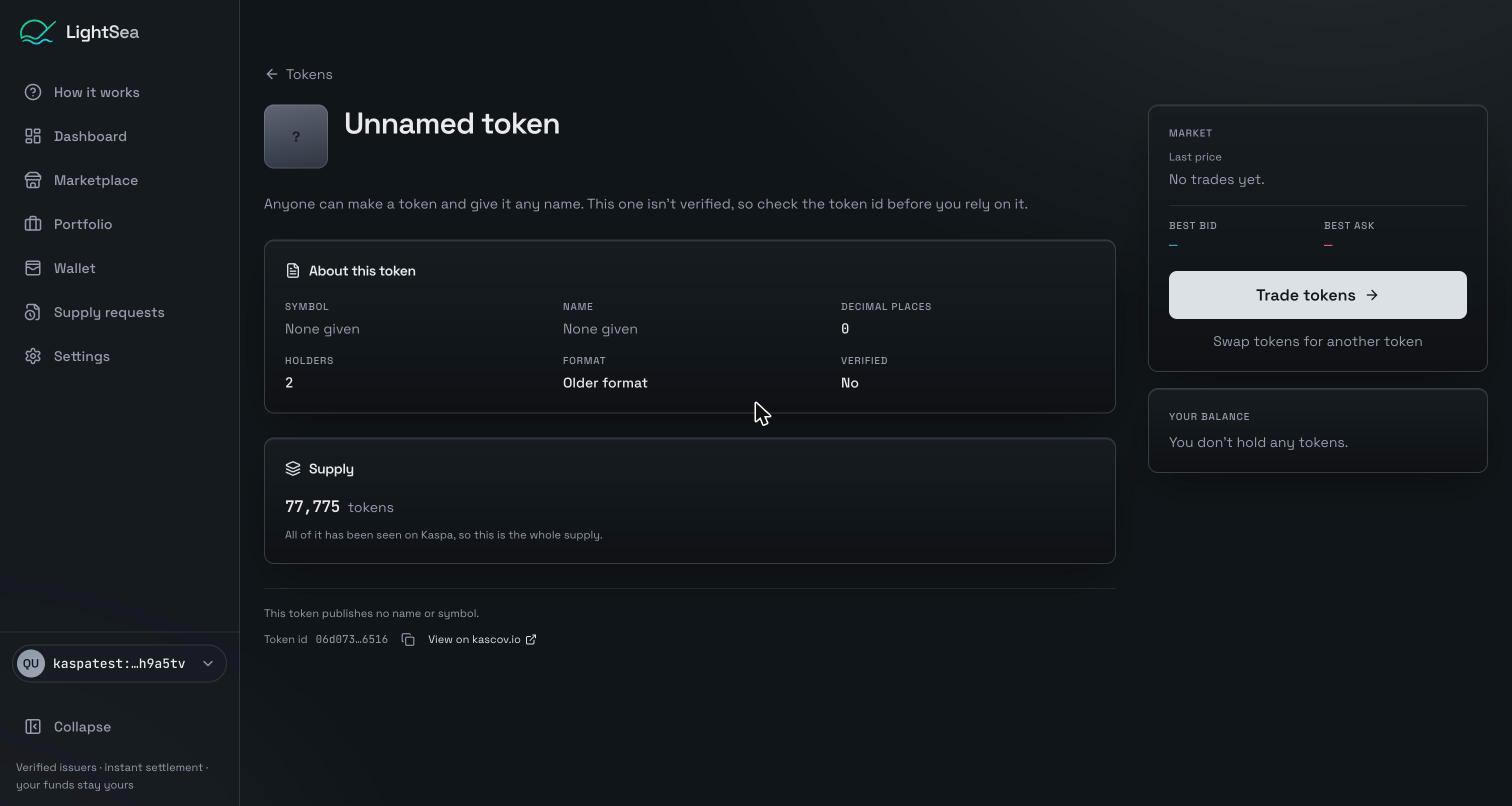
Ordinary tokens have no listing step. Any token made on Kaspa appears in Tokens by itself, with its holders and supply. Whoever made the token chose its name and symbol, and ProMEX can't change them. A token without a published name shows as "Unnamed token", with the start and end of its id.
- Open Marketplace › Tokens. The most-held tokens come first.
- Search for LSTEST and open Light Sea Test.
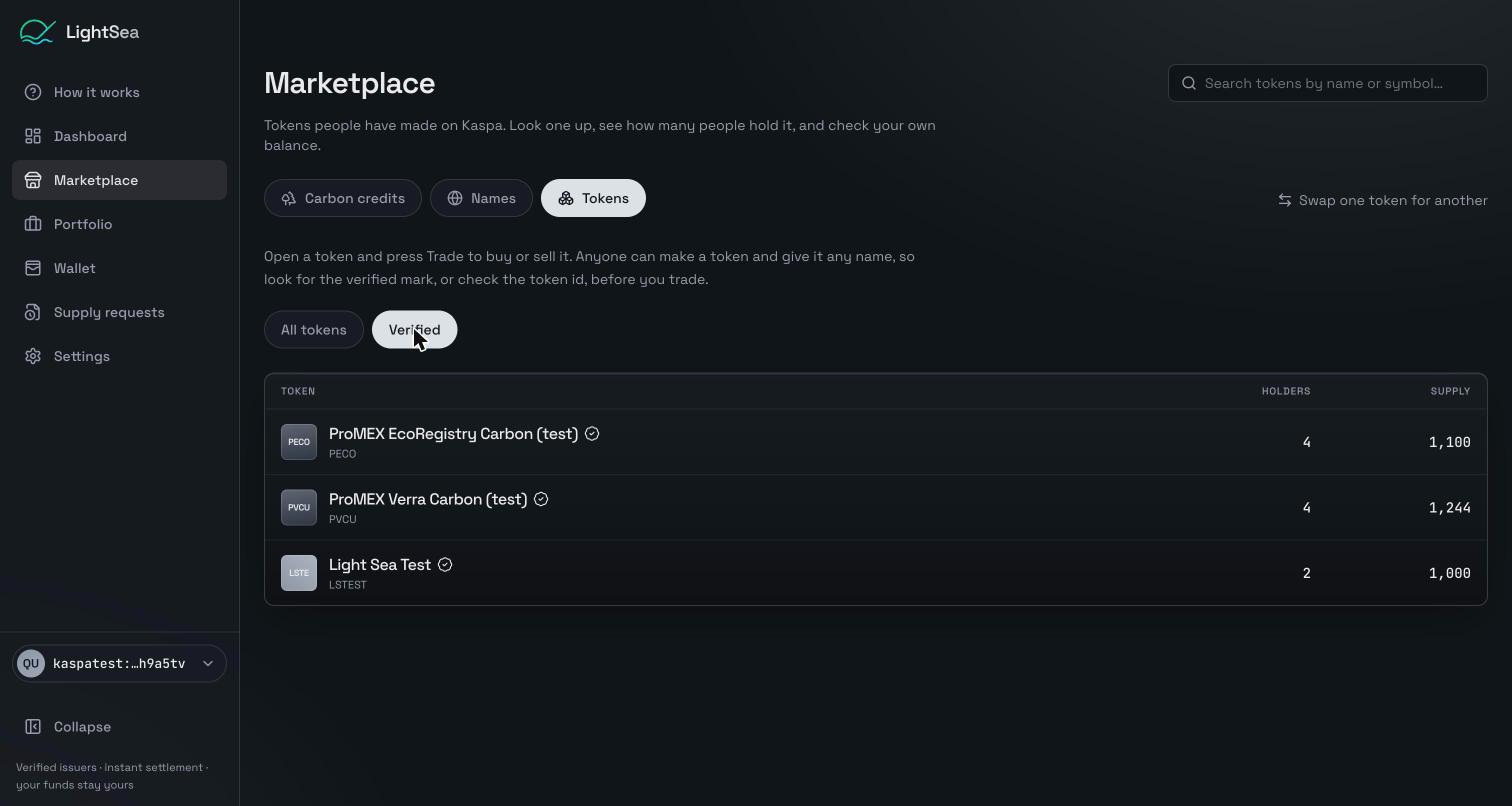
- Press Verified. Only the tokens with the verified mark stay: PECO, PVCU and LSTEST today.
- Press All tokens and open a token without the mark, for example an "Unnamed token".
You should see:
- Holders and Supply for every token. Some supplies say "and more not yet revealed": Light Sea has not yet seen all of that token on Kaspa.
- The verified mark (a tick in a circle) next to verified tokens.
- A warning on the unverified token, before you trade it: "Anyone can make a token and give it any name. This one isn't verified, so check the token id before you rely on it." (step 7's screenshot shows it).
- Above the list, the tab says: "Open a token and press Trade to buy or sell it."
The verified mark is a label ProMEX gives, not a check or a guarantee, and the app says so. ProMEX chooses which tokens get it. The rule for choosing is not decided yet.
Most tokens can be traded as soon as someone places an order (Guide 5). Light Sea can't trade tokens built in some other ways yet, so it refuses their orders. That is expected for now.
Known issue F25 (the Tokens tab said trading wasn't open) was fixed on 20 Nov. Test it again.
What to check
ON-06: tokens are listed with holders and supply, verified ones carry the mark, and an unverified token warns before trading.
7. A KRON token
KRON tokens use an older token format. They appear on their own like any other token, and they can be traded since 21 Nov.
- Open https://lightsea.io/token/06d073cefa3c0bcb842c8acc0da15d80cca2262293d8fb61344734ce925c6516
- Check the details.
- Press Trade tokens to open its trade page.
On the token page you should see:
- Unnamed token as the title. This token publishes no name or symbol.
- The unverified warning under the title.
- Under About this token: Symbol and Name "None given", Decimal places 0, Holders, Format "Older format", Verified "No".
- Supply, with a line that says whether all of it has been seen on Kaspa.
- At the bottom, the token id 06d073…6516.
The trade page should work like any token's trade page (Guide 5): a price chart, the Order book, Your orders and the Place an order ticket with Buy and Sell.
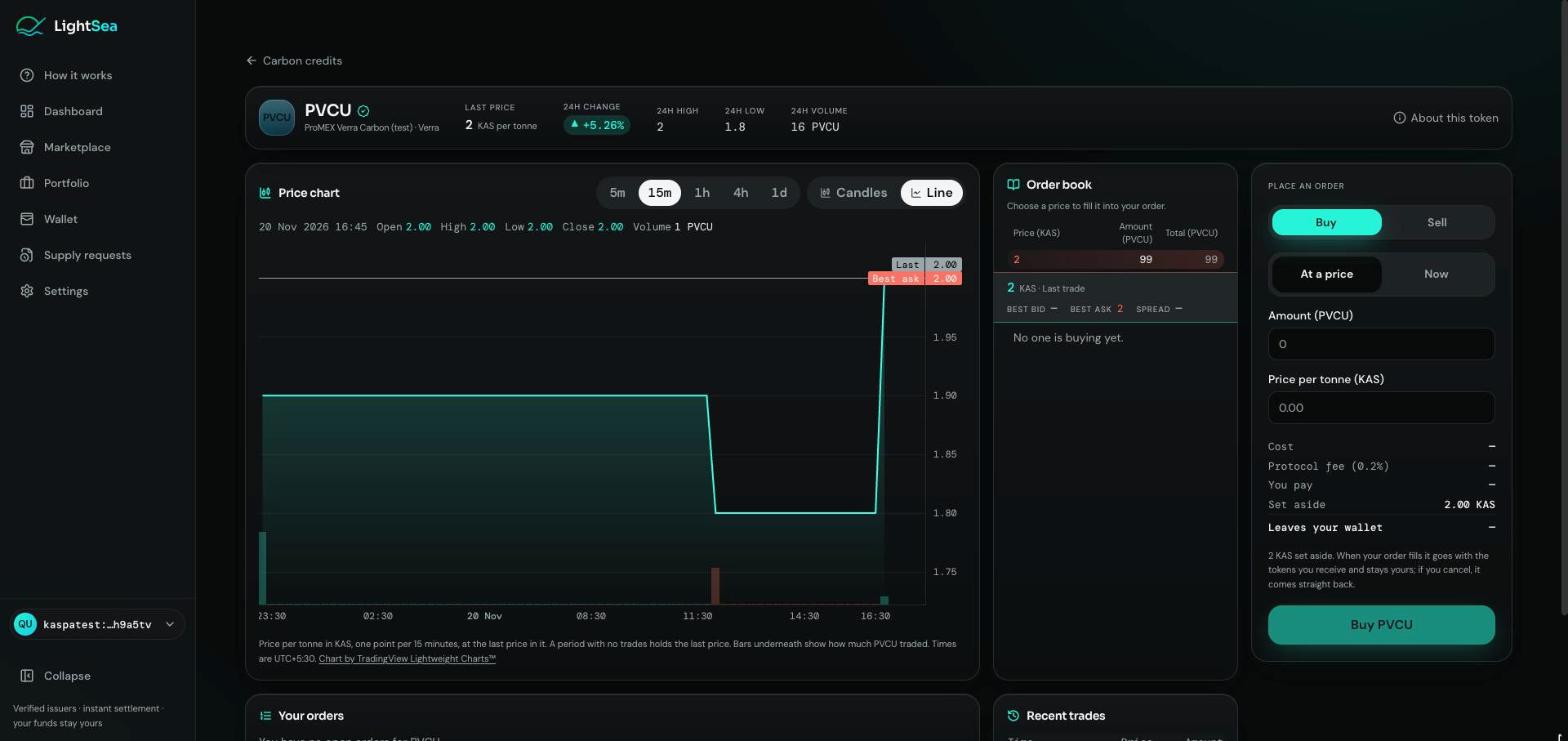
The full KRON trading checks are KR-01 to KR-05 in the test sheet (they replaced TR-18). To sell, you need some of the KRON test token in your wallet: ask the product owner. One order can't be more than 1,000,000,000 units (KR-05). KRON tokens are not offered in swaps (Guide 10).
What to check
ON-07: the details are right, and the trade page trades the KRON token like any other token.