Before you begin
Who: a holder with a verified ProMEX supplier profile (on lightsea.io), then ProMEX: an Approver or the Owner to decide, any admin to record the registry transfer, and two different approvers to sign at the end (admin.lightsea.io). Tests: RR-04 to RR-10, RR-12.
You need: Chrome with Kastle on Testnet-10, connected to https://lightsea.io; a wallet holding PVCU or PECO and a few KAS; a verified business profile with your registry account on it (Guide 2, part A). The test supplier Greenleaf Test Carbon Ltd has TEST-VERRA-ACC-0001 on its profile. For PECO, add an EcoRegistry account to the profile first.
Redeeming moves credits out of ProMEX's registry account and into the holder's own registry account. In short:
- The holder asks, and ProMEX approves.
- The holder sends the tokens back to ProMEX.
- ProMEX transfers the credits (by serial number) to the holder's account at the registry.
- Two ProMEX approvers retire the tokens the holder sent. The 1 KAS that went with those tokens goes back to the holder.
| Stage | Who | Approvals | Step below |
|---|---|---|---|
| Ask | holder | none (one wallet signature if this wallet hasn't signed in the last 30 days) | 1 |
| Approve or reject | Approver or Owner | one decision (the browser asks "Are you sure?") | 3 |
| Send the tonnes | holder | one wallet approval | 4 |
| Transfer at the registry and record it | any admin | none | 5 |
| Retire the tokens the holder sent | two different approvers | 2 of 3 approvers sign | 6 |
Part A · The holder asks
1. Press Redeem
Open the token's page (see Guide 4A step 1). In the Use your tonnes box, press Redeem. A dialog opens: Move PVCU to your registry account.
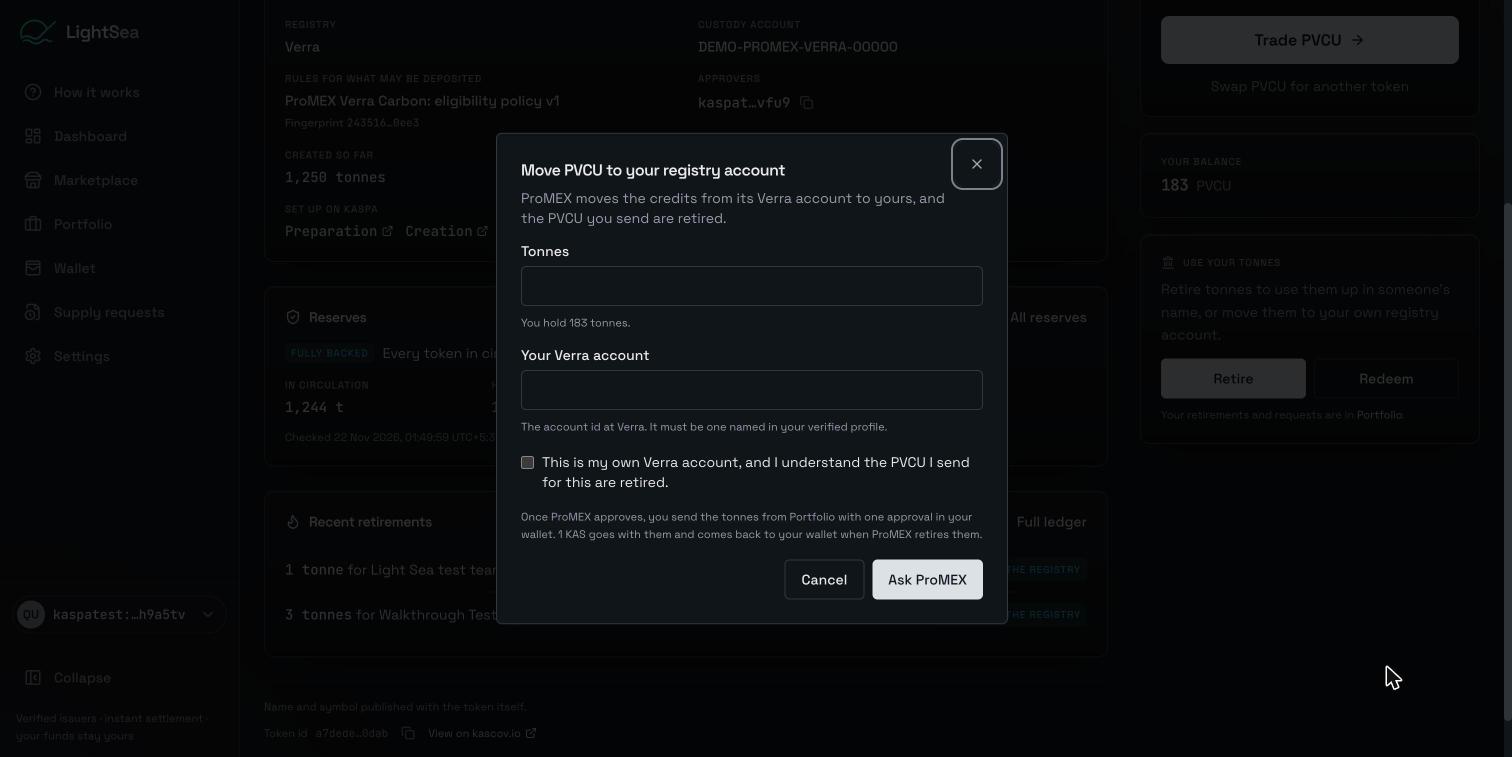
- Tonnes: enter whole tonnes, up to what you hold.
- Your Verra account (or your EcoRegistry account, for PECO): enter an account named in your verified profile. For the test supplier, that is
TEST-VERRA-ACC-0001. - Tick This is my own Verra account, and I understand the PVCU I send for this are retired.
- Press Ask ProMEX.
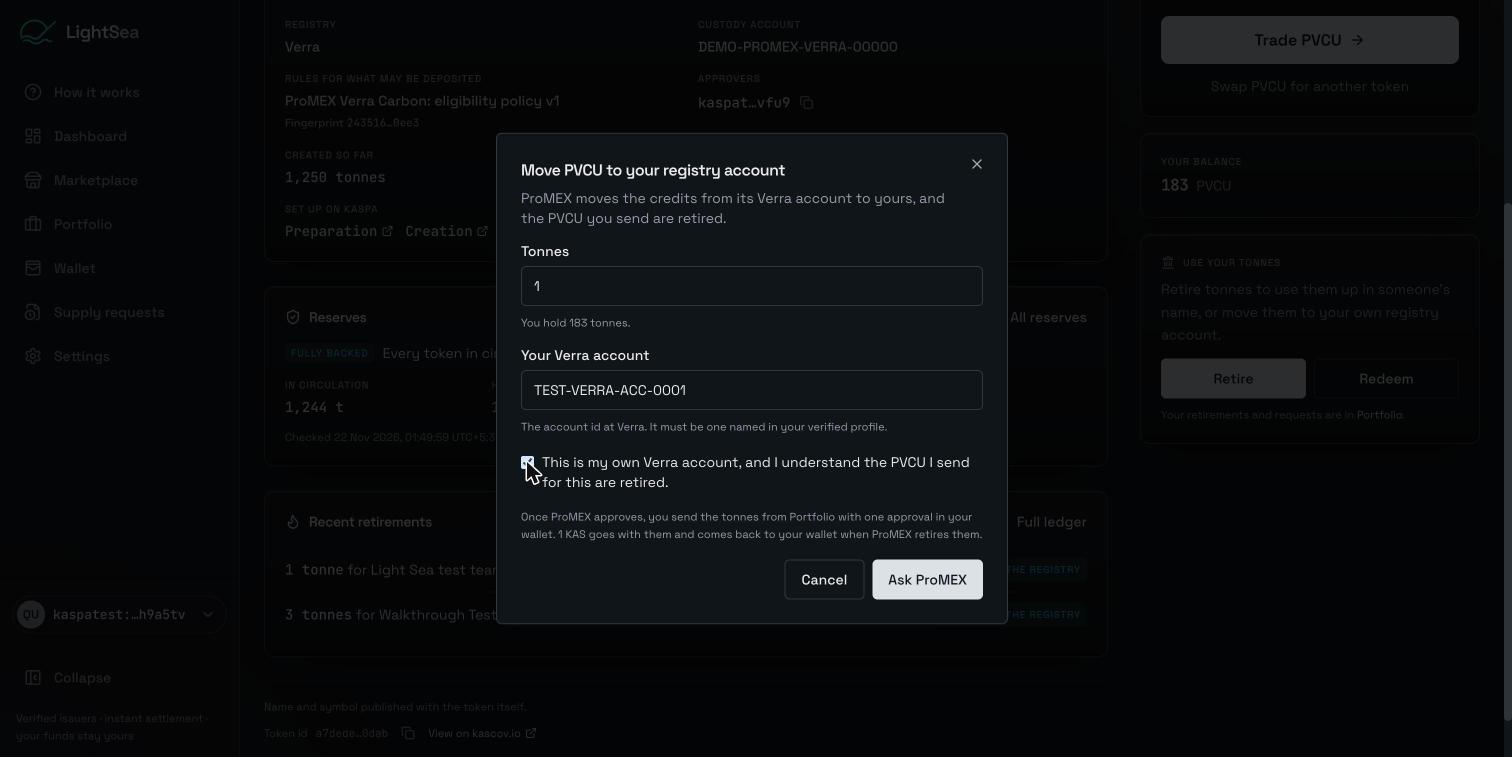
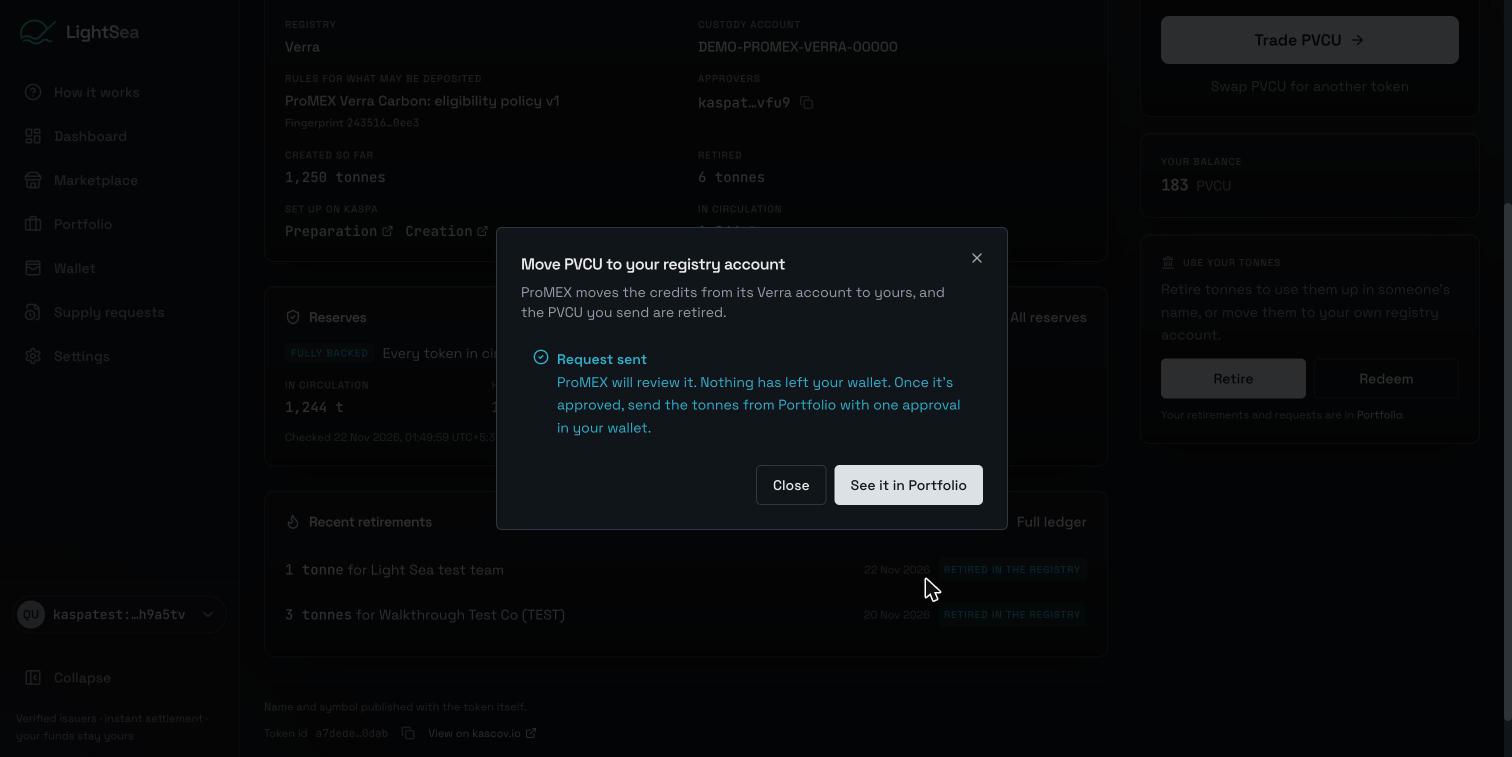
Nothing leaves your wallet yet. If this wallet hasn't signed in the last 30 days, Kastle first asks you for one signature. Signing moves no funds.
Part A · The holder asks
2. Waiting for ProMEX
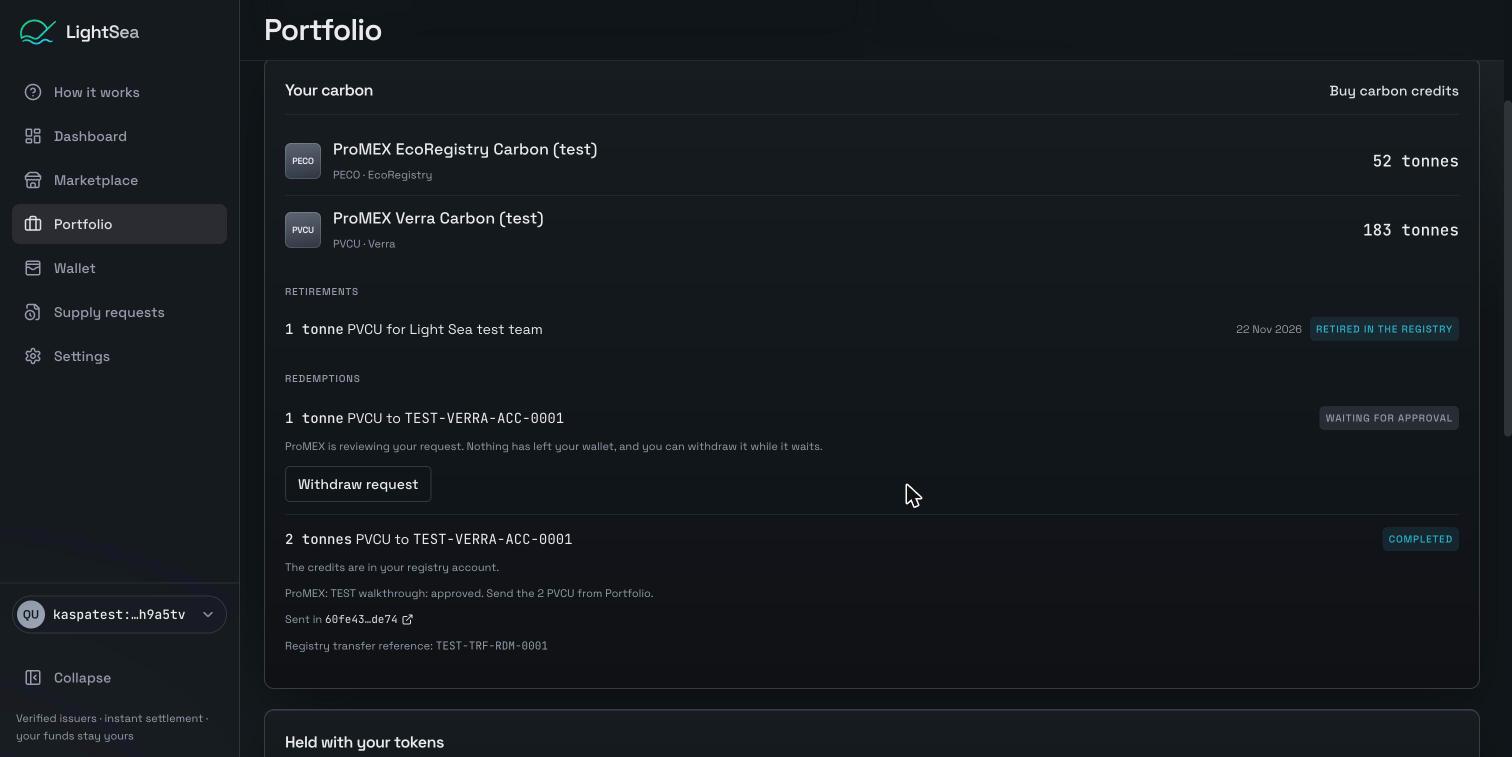
Open Portfolio. Under Redemptions, your request shows Waiting for approval and a Withdraw request button. You can withdraw it while it waits.
What to check
RR-09: a wallet without a verified profile is told it needs one, and no request is created. A rejected profile gets "…supplier profile is rejected — a ProMEX approver has to verify it first".
What to check
RR-10: an account that isn't on the profile is not refused at this step. The request is created, and the portal marks the destination not on their profile, with a warning above Approve (checked 23 Nov).
Part B · ProMEX decides
3. Approve or reject (Approver or Owner)
In the ProMEX portal, open Redemptions. It lists every request. The To decide tab has the new ones.
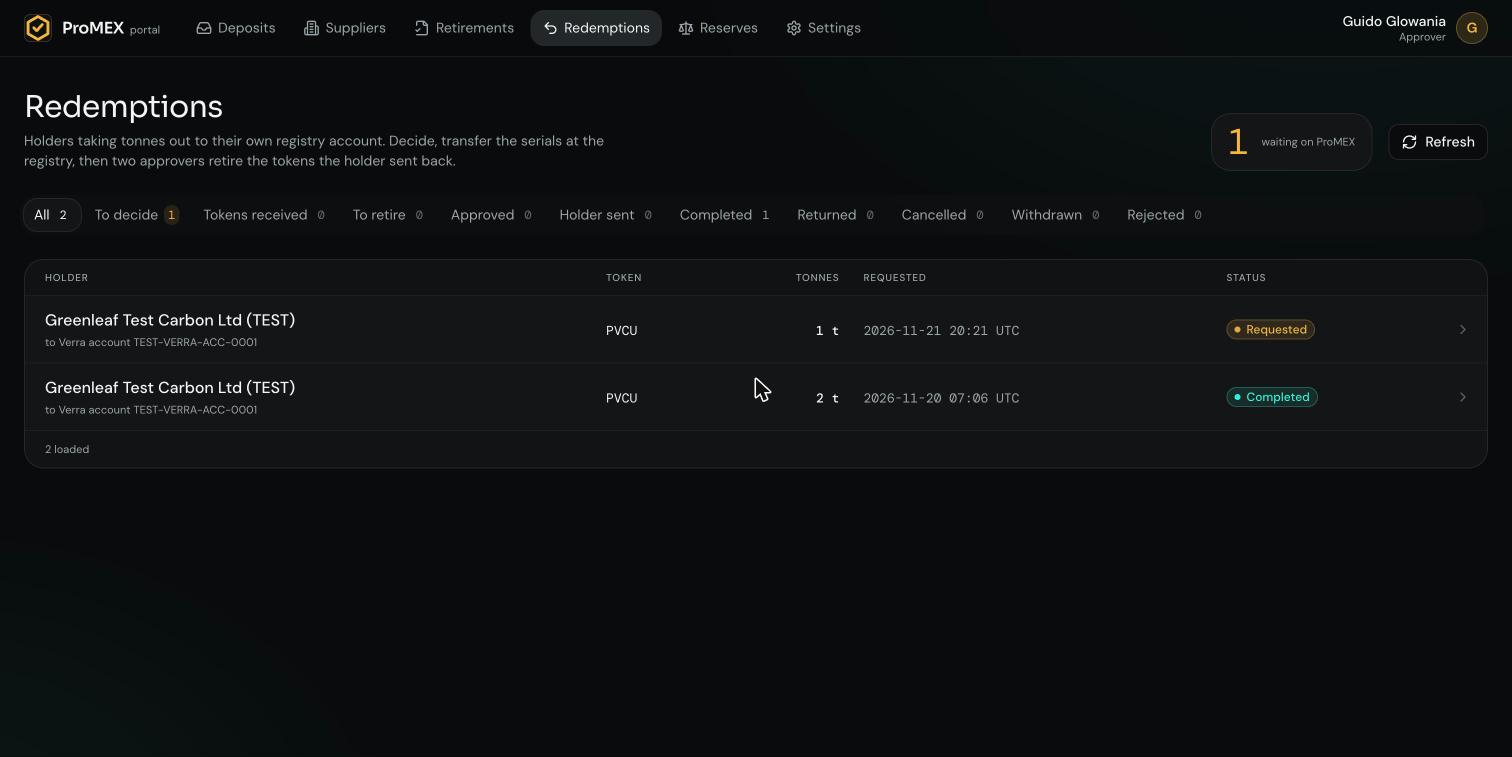
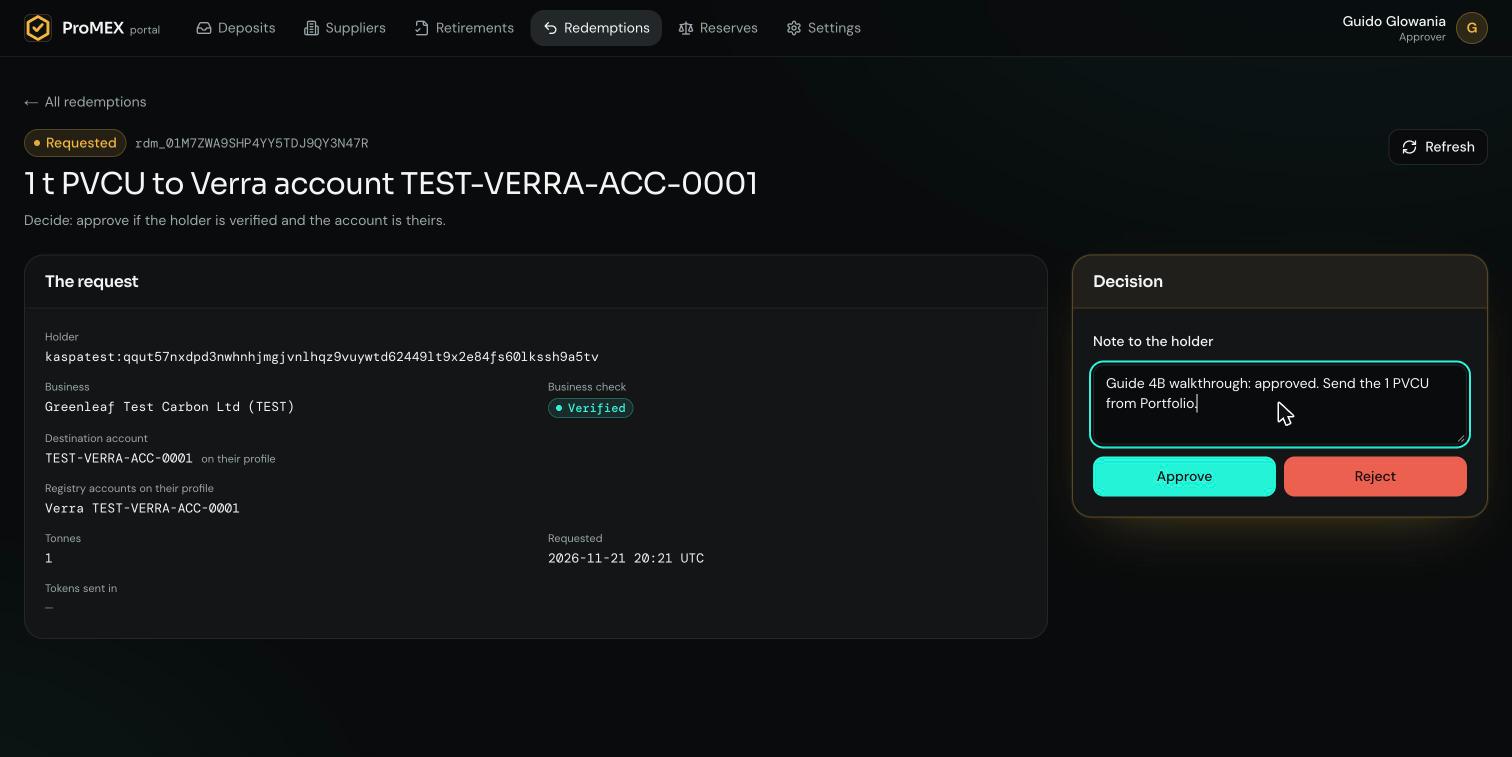
- Open the request.
- Check that Business check says Verified.
- Check that the Destination account is marked on their profile.
- Write a Note to the holder.
- Press Approve. (Or press Reject, which needs a reason.)
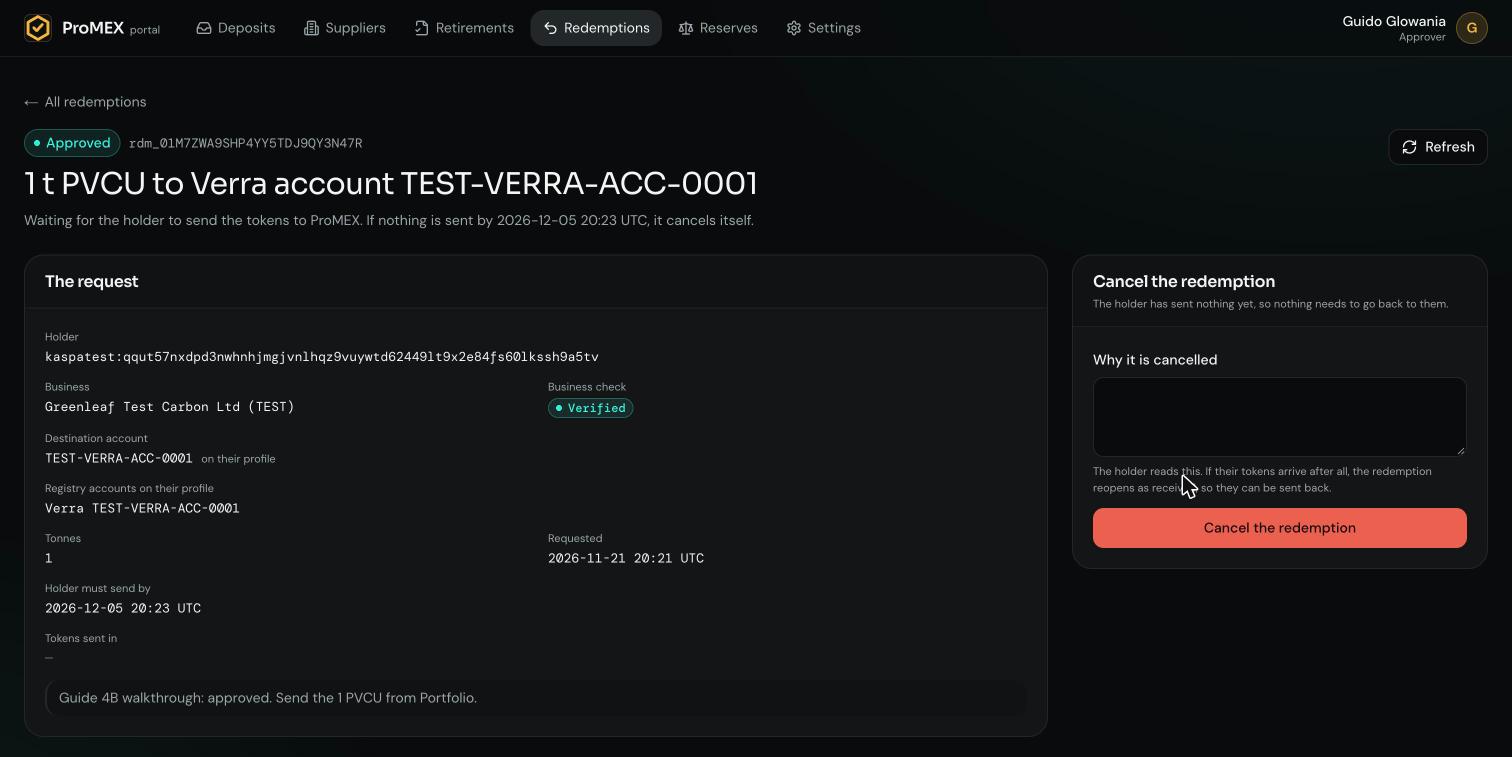
- The browser asks you to confirm. Confirm.
Part C · The holder sends the tonnes
4. Send from Portfolio
Open Portfolio. The request now says Approved — send your tonnes. It shows the deadline (14 days), ProMEX's note, and three buttons: Send 1 tonne, Report my send and Cancel request.
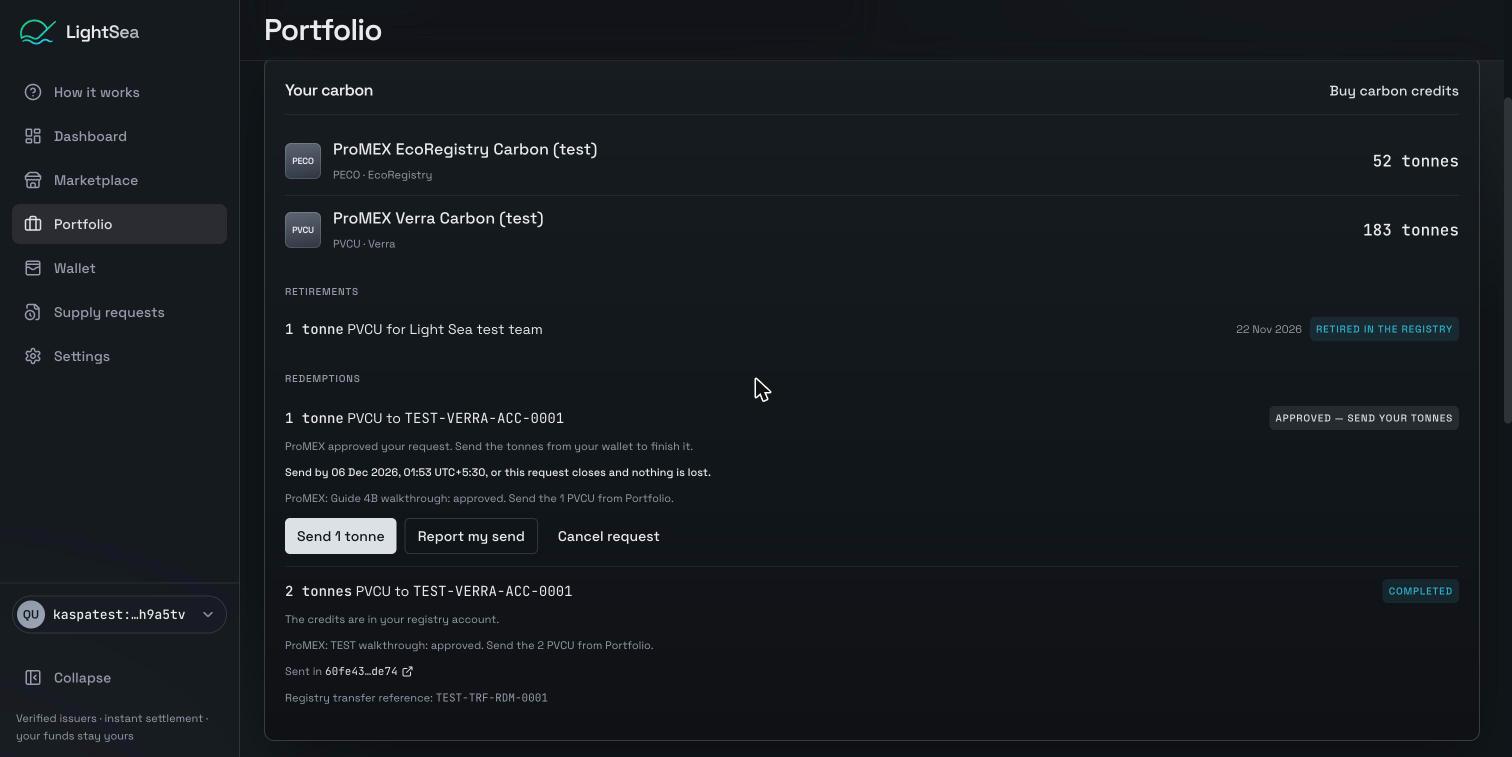
Press Send 1 tonne. The dialog explains what happens: the tonnes go to ProMEX, ProMEX moves the credits to your account, and the tokens you send are retired. 1 KAS goes with them and comes back when ProMEX retires them. Your wallet pays a small network fee.
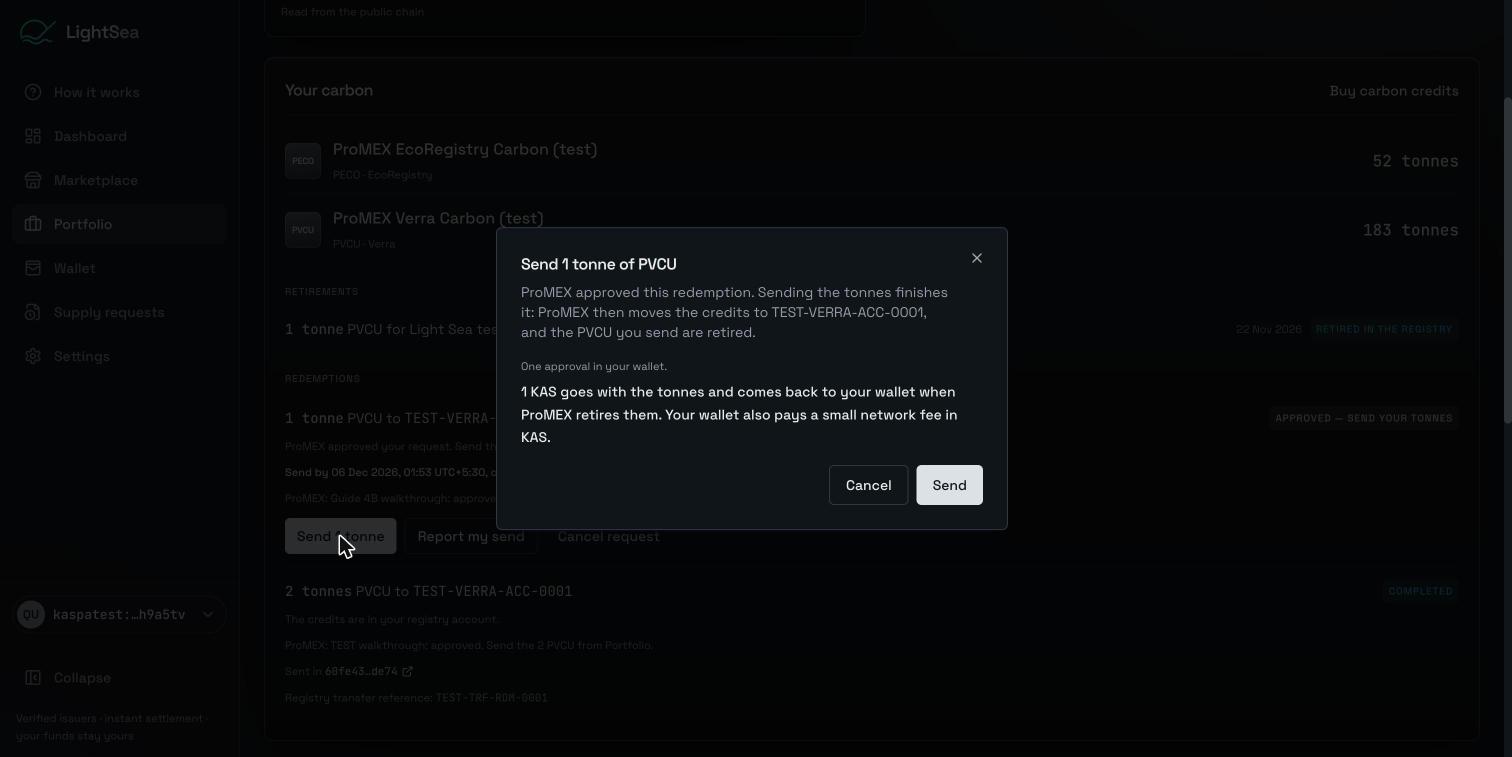
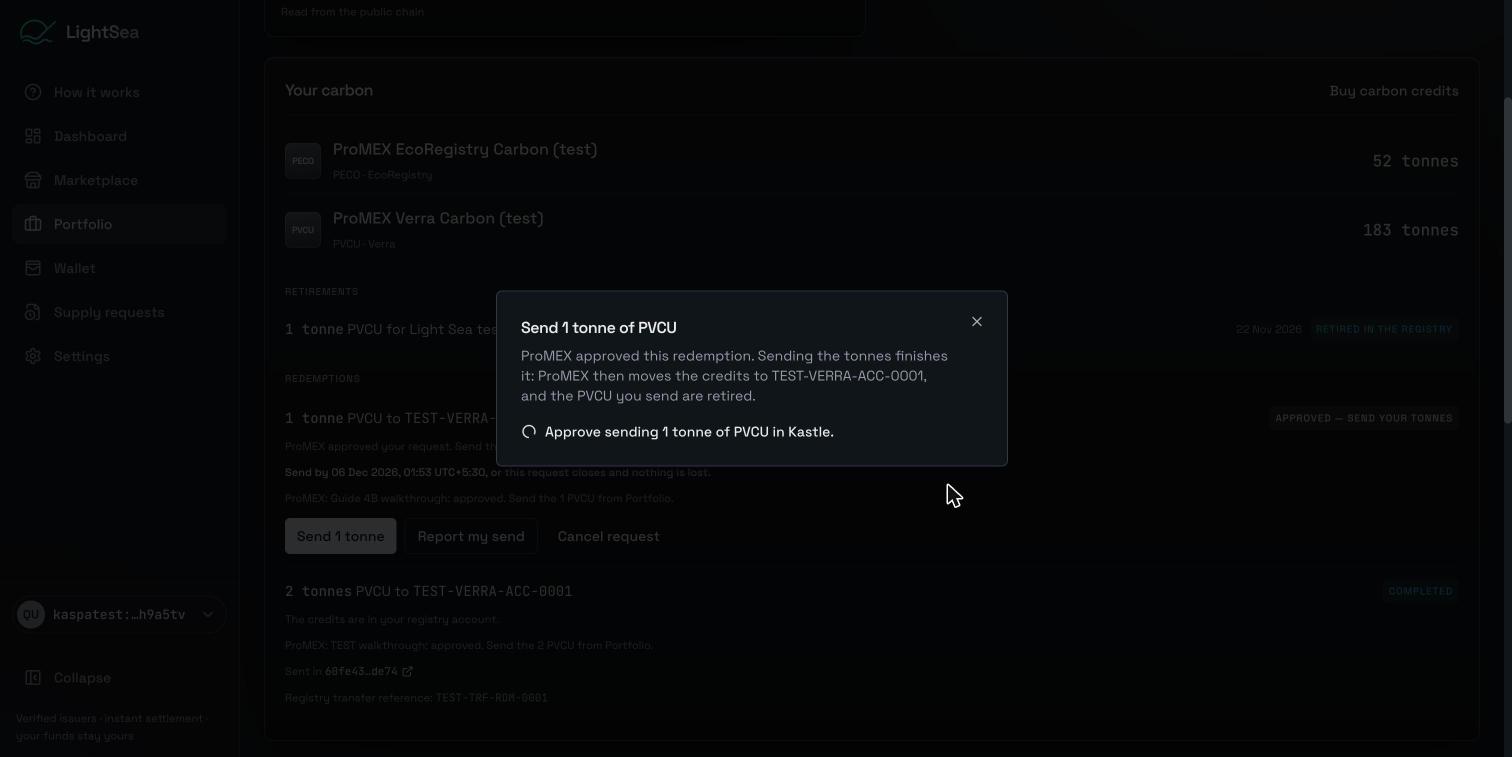
Press Send, then approve in Kastle. The dialog waits for you.
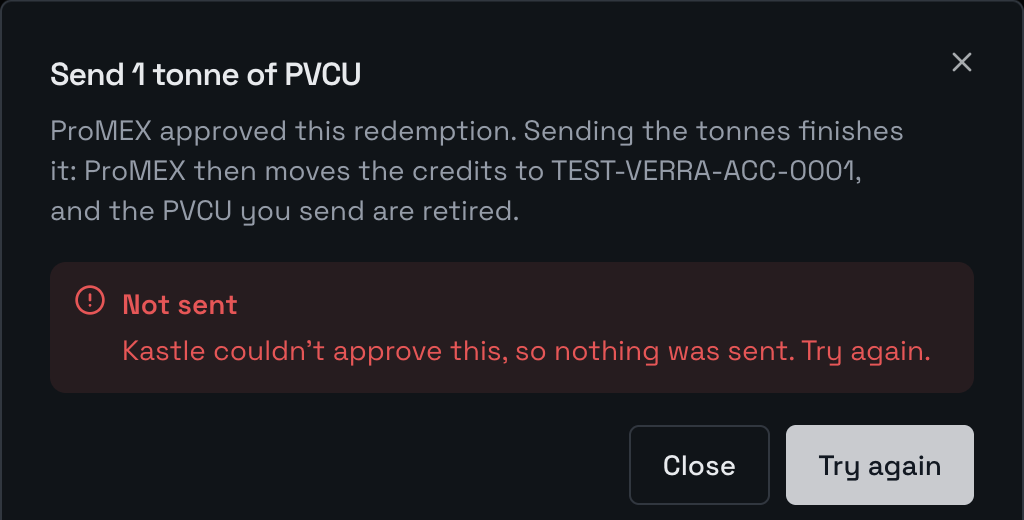
If the wallet doesn't approve, nothing is sent and the dialog offers Try again.
When you approve, the dialog says Sent and shows a link to the transaction.
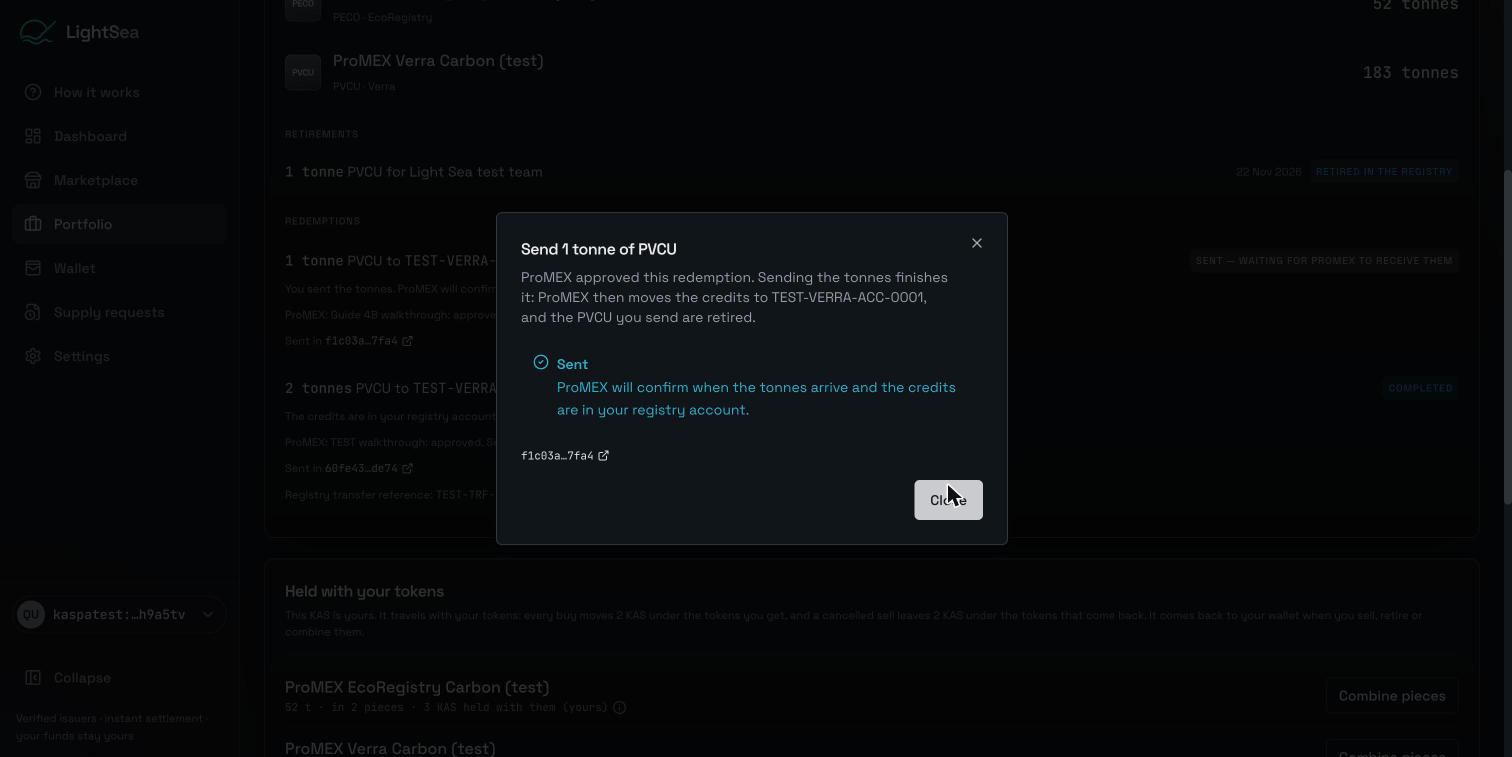
Within a few minutes (under a minute in this run), the redemption moves to Tokens received.
If the app couldn't tell ProMEX about the send (for example, you closed the tab or the connection dropped), wait first. The app remembers the send and reports it the next time Portfolio opens, and ProMEX also finds the tokens on its own. Use Report my send only if Portfolio still shows "Approved" after that. Never send twice.
What to check
RR-05: the PVCU balance drops by the tonnes sent. The redemption shows Tokens received. The portal shows the transaction under Tokens sent in. Light Sea refuses a send for a redemption that isn't approved, or for a different amount.
Part D · ProMEX completes it
In the portal, the redemption now shows Received.
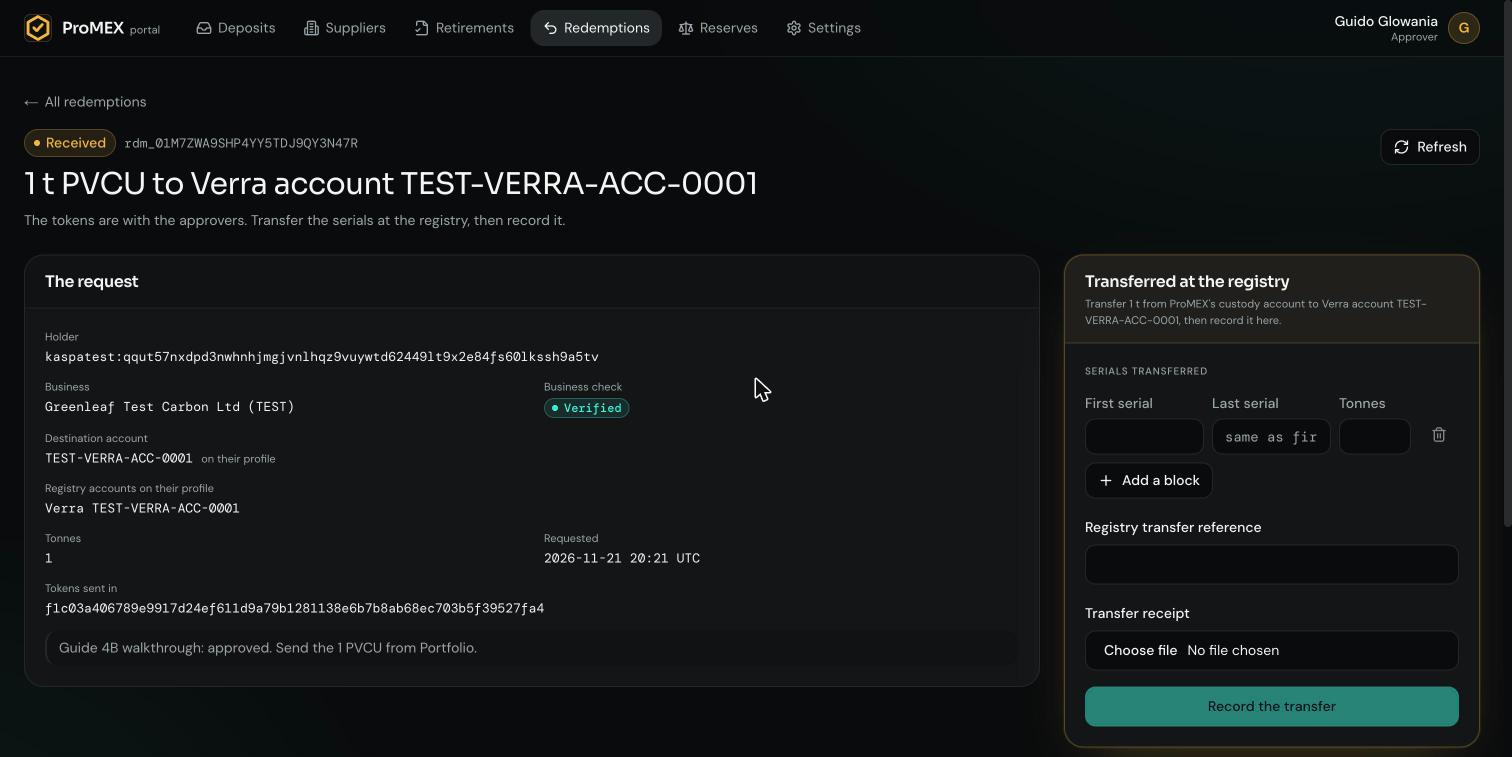
5. Transfer at the registry and record it (any admin)
- At the registry, transfer the serials from ProMEX's custody account to the holder's account. On testnet, skip this.
- On the redemption, fill in the Transferred at the registry panel: the serials transferred, the Registry transfer reference and the Transfer receipt. On testnet, attach
test-documents/test-redemption-transfer-receipt.pdf. - Press Record the transfer. No wallet approval is needed.
The holder's Portfolio now shows Moved to your registry account.
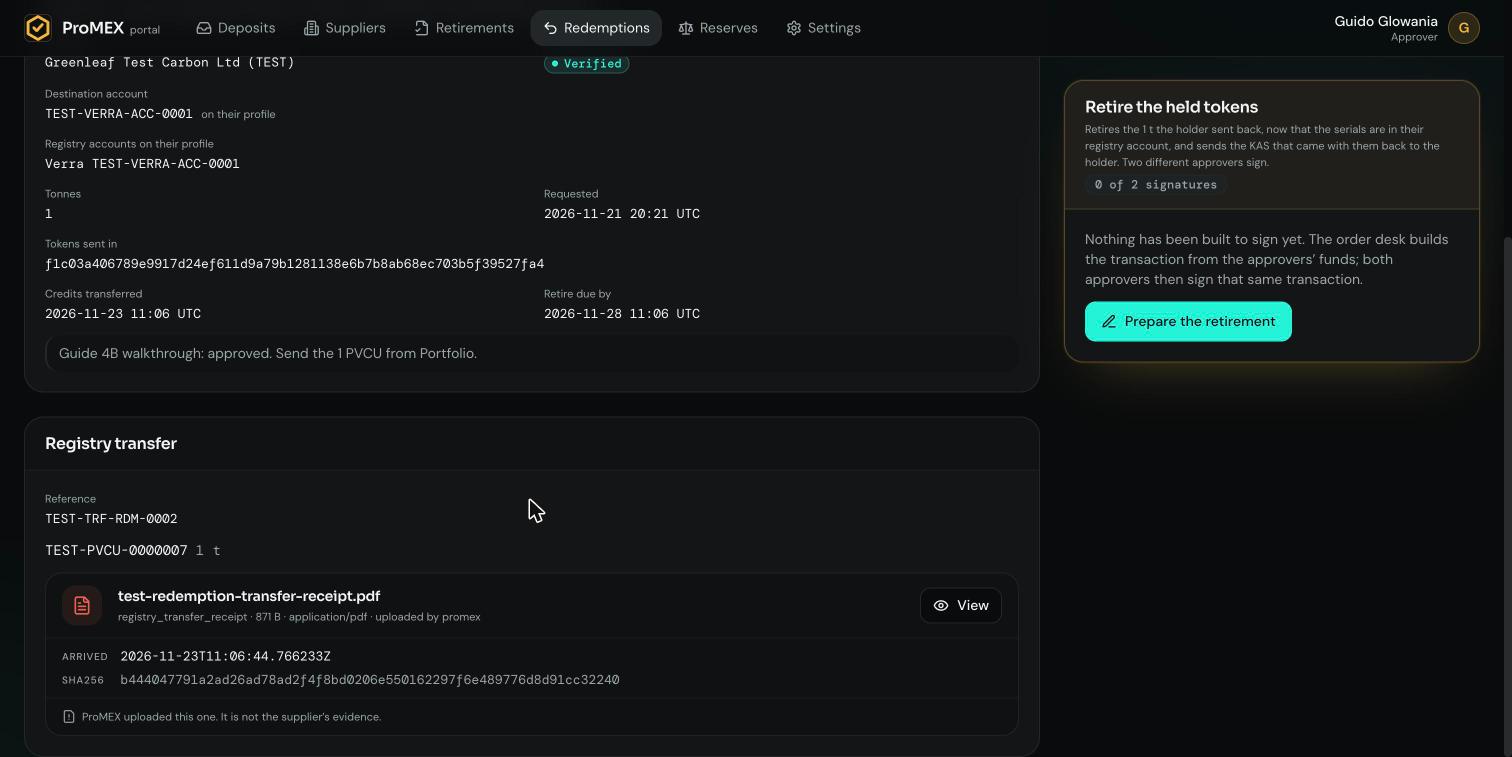
A serial that was already retired or transferred is refused: "Not recorded. TEST-PVCU-0000006 … overlaps TEST-PVCU-0000006 …, already retired or transferred." Use the next free serial.
Part D · ProMEX completes it
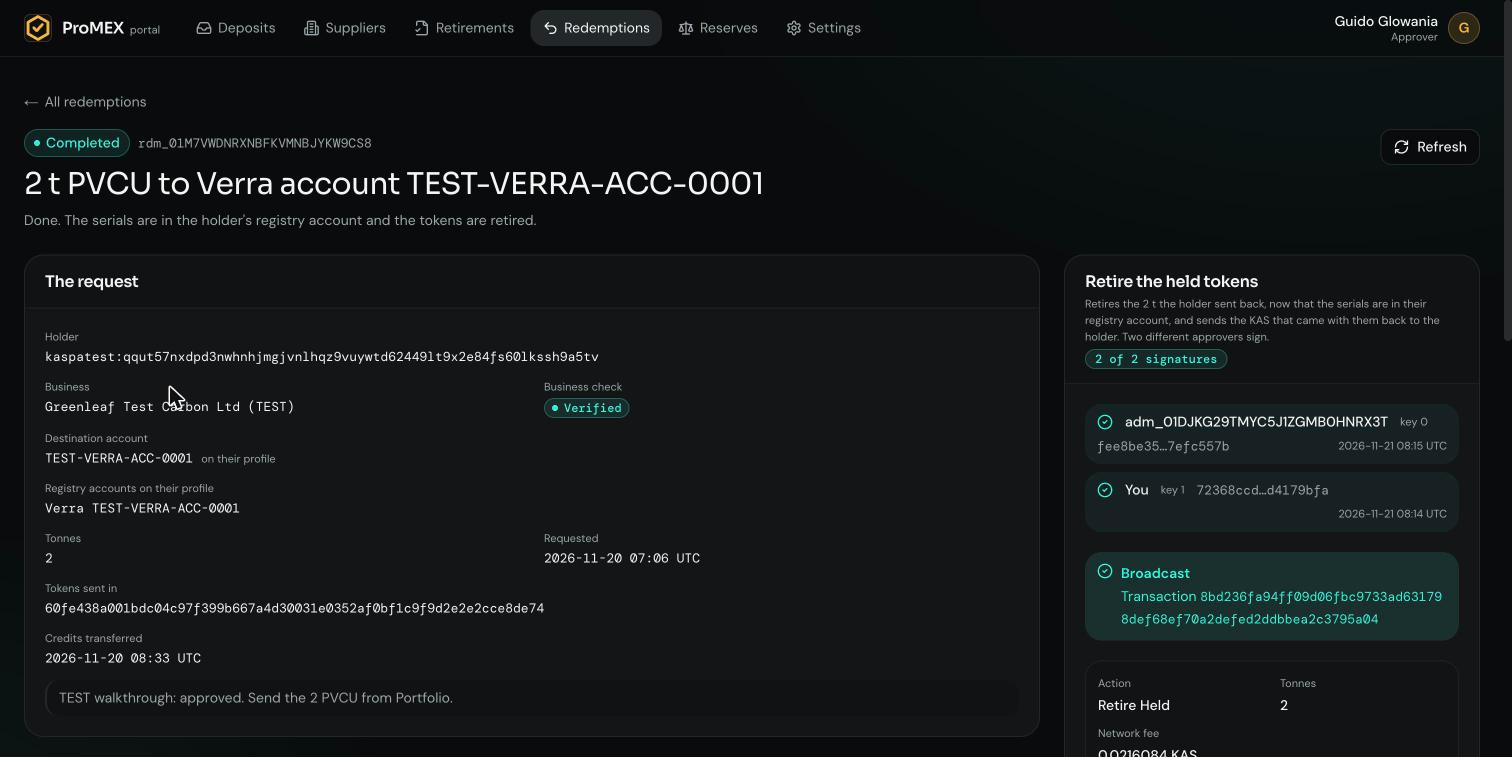
6. Retire the held tokens (two approvers)
The right-hand panel is now Retire the held tokens.
- An approver presses Prepare the retirement. Light Sea prepares the transaction for the approvers to sign.
- Before anyone signs, make sure all four checks are ticked:
- It is a retirement of held tokens.
- Tonnes match the redemption.
- The holder's 1 KAS goes back to them (to the holder's own address).
- Signed by two of the three approvers.
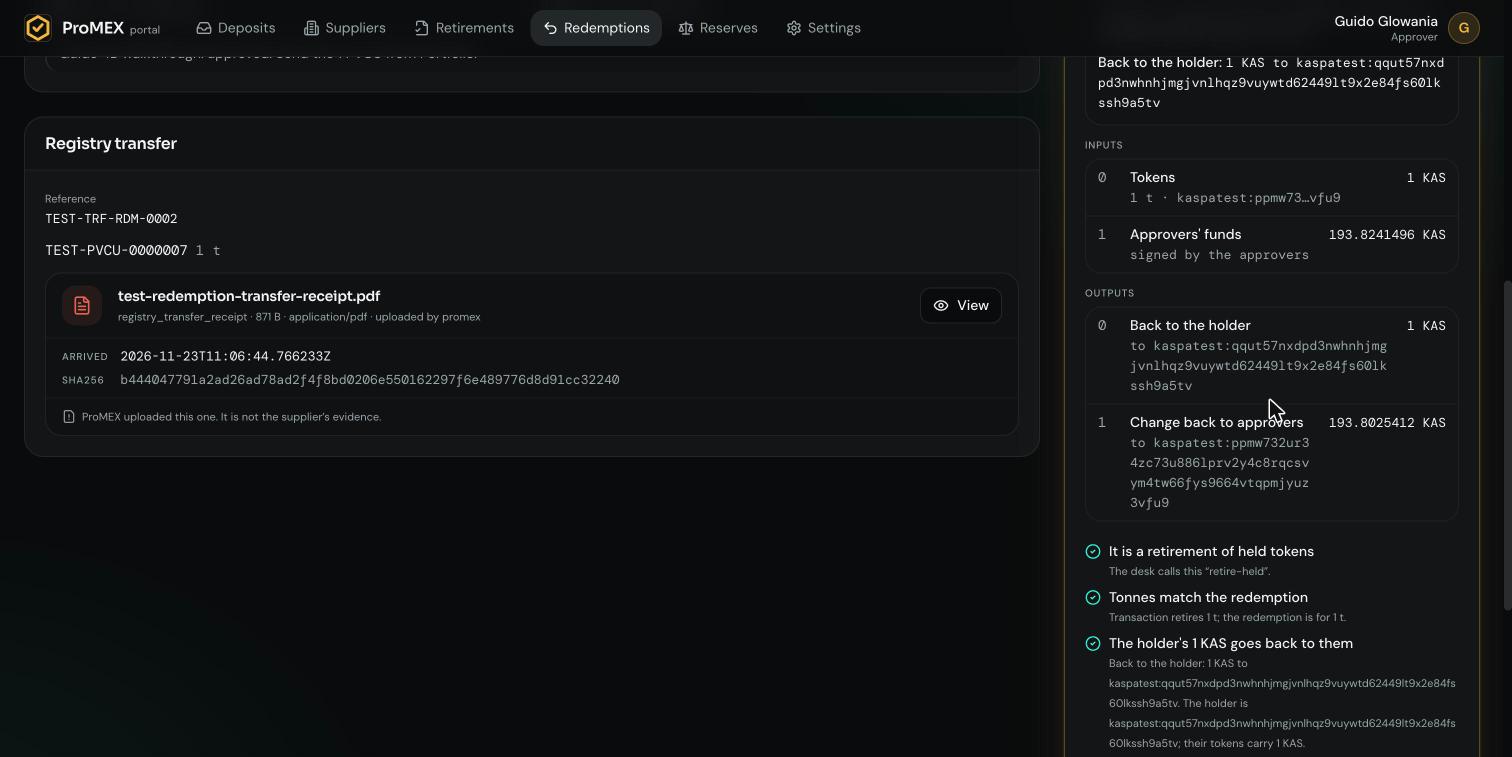
- Each approver signs with the wallet account they registered as an approver. Press Sign with a wallet, choose Kastle, KasWare or Kaspire, and approve in the wallet. If the wallet is on a different account, it is refused before anything is signed.
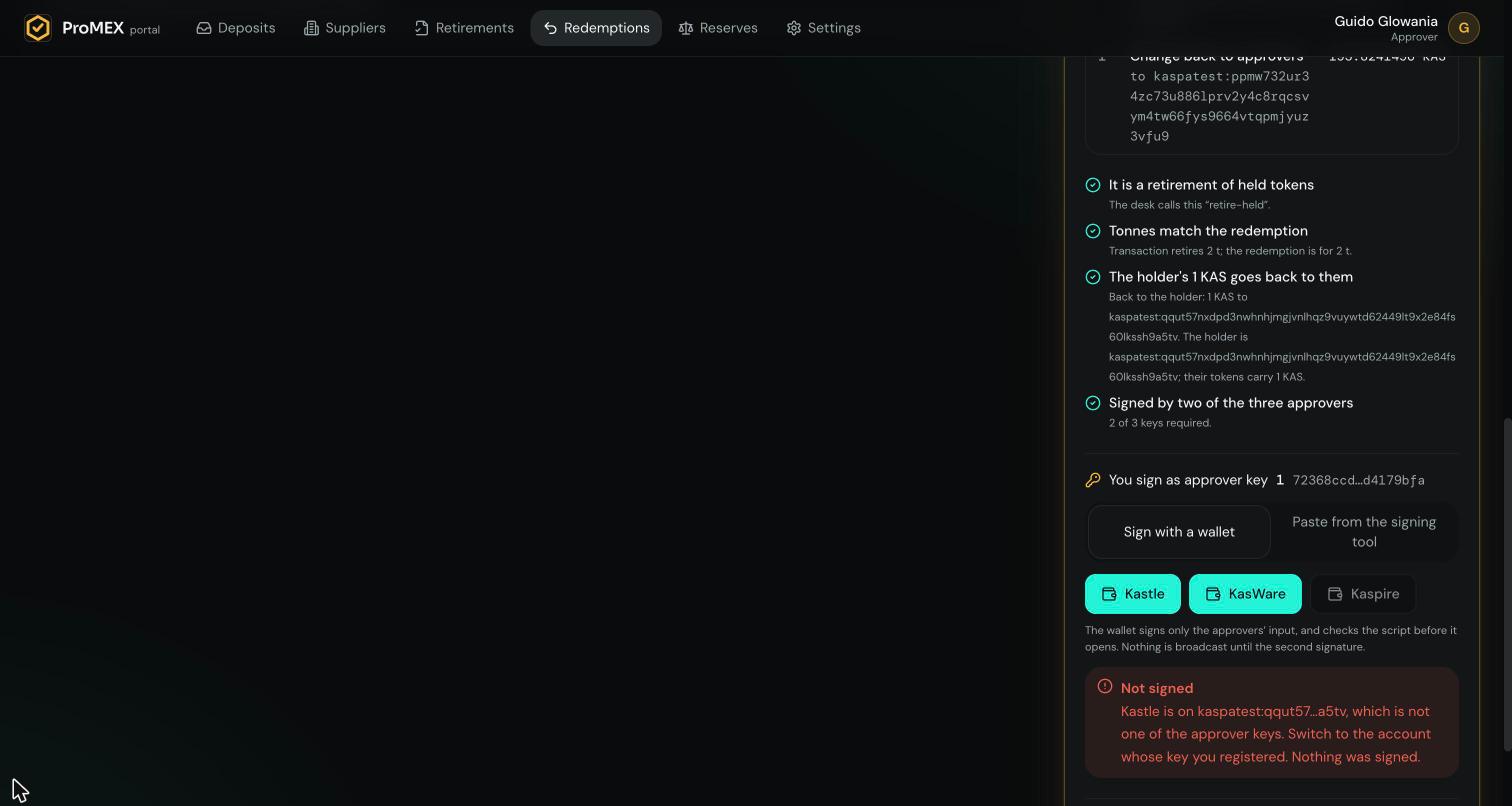
- The first signature is saved. When a second, different approver signs, the transaction is sent to Kaspa. The redemption becomes Completed.
The holder's Portfolio shows Completed with the transaction and the registry reference, and their 1 KAS is back.
If a redemption can't go ahead
| Situation | Who | What to do |
|---|---|---|
| The holder changes their mind before approval | holder | Withdraw request in Portfolio. Nothing has moved. |
| Approved, nothing sent yet | holder or ProMEX | Cancel request (Portfolio) or Cancel the redemption (portal, with a reason). It also cancels itself after 14 days. |
| The holder reported a send, but nothing arrived | ProMEX | Check the approvers' address on the Kaspa explorer website to confirm nothing arrived. Then use Nothing arrived? to put the redemption back to approved. The holder can send again. |
| Tokens arrived, but the registry transfer can't happen | two approvers | Return to the holder (2 of 3 approvers sign): sends the tonnes and their 1 KAS back to the holder and closes the redemption. Not possible once the credits were transferred at the registry. |
| Tokens received, retirement not done in time | nobody (it happens by itself) | Flagged overdue in the portal and on the public Reserves page. |
What to check (and report if different)
Known gaps: the holder isn't notified when ProMEX approves or rejects. If someone sends tokens straight from a wallet without a redemption, the portal has no action for them yet.